mandara
Sidebar, notes and notifications
Sidebar tabs, to-do lists and Markdown notes
- Your own sidebar tabs: create tabs, name them, pick an icon and put any
widget (Mandara’s or a third-party plugin’s) on any of them, the same
widget on several if you like. Edit them in Studio → Bars → Sidebar →
Tabs, right-click a tab in the shell, or use
mandara msg sidebar tab …. The sidebar reopens on the tab you used last, and Ctrl+Tab / Ctrl+1–9 switch tabs. The + button stays pinned while the tabs scroll sideways (wheel, touchpad or drag) under edge fades, and idle tabs shrink to icons only when their labels don’t fit. - Cards you can add: Quick settings, Weather, Notifications, Media,
Audio, Resources, To-do, Notes, Pomodoro, Prayer times, Jannah, the
Qur’an, Hadith, Radio (now playing, favourite, previous / play / next and
volume), Feeds (your newest unread articles), Reddit (a community’s top
posts), and live Sudoku and 2048 boards, plus any third-party plugin’s
card. Pick them under Add a widget in Studio → Bars → Sidebar →
Tabs, with Add to sidebar on a plugin’s page, from an empty tab’s
Add widgets button, or with
mandara msg sidebar tab widget add Overview feeds. Placing a card switches its plugin on. A plugin you switch off takes its card out of sight (it stays on the tab and returns when the plugin is back on). While the sidebar is hidden the Feeds and Reddit cards let go of their rows and fetch nothing. - To-do lists: tasks grouped into coloured lists with an Inbox, a chip
switcher with counts, drag a task onto a list to move it, and completed
tasks folded away per list.
/todo #Work send the reportin the launcher files a task in one step. - Markdown notes: every note is a real
.mdfile and every topic a folder (point it at a synced folder or an Obsidian vault; outside edits show up live). Notes render natively with clickable task lists, code blocks (always monospace), tables, quotes and right-to-left Arabic. The editor has a real caret (arrows, word jumps, Shift-selection, click and drag, copy / cut / paste), continues lists and applies Ctrl+B / Ctrl+I / Ctrl+K to the selection; search is fuzzy, and/note #Topic …adds one from the launcher.
Notifications
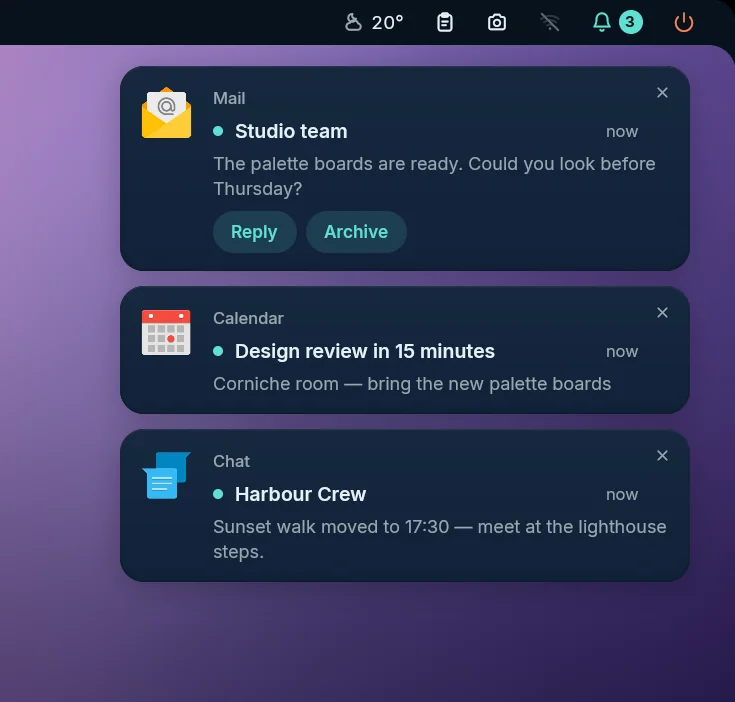 Notification cards with actions |
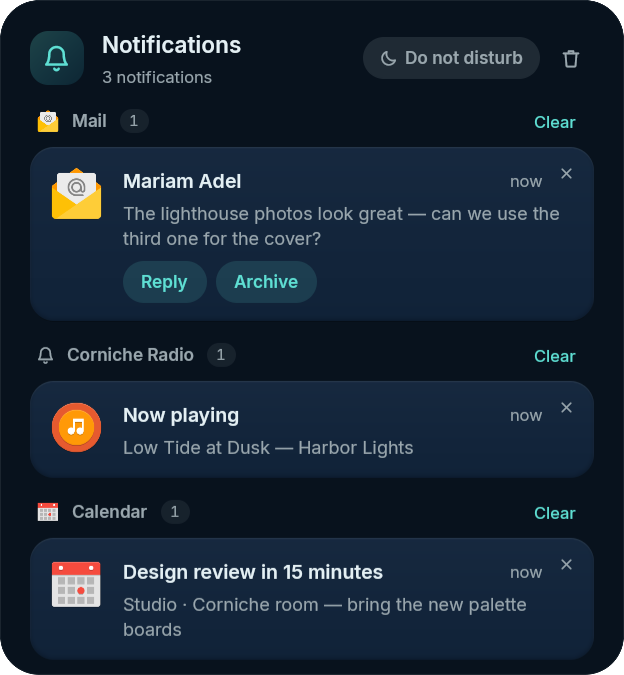 Notification center |
- Notification cards spring in from their corner on their own layer surface, close the gap smoothly when one leaves, pause while you hover them and draw a thin countdown line. Swipe a card sideways to send it away: it leaves the screen but stays in the notification center (× dismisses it for good). Only the cards take clicks; the rest of the surface passes them through to your windows.
- Joined to the bar (Studio → Notifications → Popups → Join the
bar,
notifications.joined, off by default): the cards drop out of the bar in one drawer of the bar’s own colour, with curved corners where it meets the bar, so bar and notifications read as one piece. Cards still spring in, pause under the pointer, swipe away, close with × and count down. How it joins depends on the bar:- Edge frame and hairline: out of the bar’s lower edge (its upper edge for a bottom bar), clear of the bar’s curved screen corners.
- Floating frame: out of the floating bar, on its straight part.
- Notch: out of the notch, even for cards at a corner (it spans most of the edge, so they hang from its end).
- On the edge without the bar (cards at the bottom under a top bar, or beside a side bar): out of the bare screen edge, or out of the screen frame’s strip around a side bar.
- Glass pills, island and micro pill on the cards’ edge have no edge to hang from, and a bottom dock holds the bottom edge of the displays it shows on: cards there stay floating cards, and Studio shows why (when the dock is on every display; on a display without the dock, bottom cards still join). A screen too narrow for a readable card beside a wide notch keeps floating cards too.
- When the bar hides itself, the drawer slides with it and hangs from the screen edge until the bar comes back.
- Opening the notification center (its panel or the sidebar tab) moves the cards on screen into it, and new notifications go straight into the list until you close it, so cards never cover the center.
- Cards carry the app icon, rich text (bold, italic, links), images, progress bars, action buttons and inline replies, and group by app.
- The notification center keeps a history you size. Per-app rules
block, silence, keep out of the history, change urgency or let an app
through do not disturb, which can switch itself on while you share your
screen, for fullscreen apps, on a schedule (quiet hours) or for a while
(
notifications dnd on 1h).
In the notification center or sidebar, drag a history card left or right to dismiss it. Small drags spring back, and vertical gestures keep the card. Studio → Notifications → History has Swipe to dismiss and Swipe distance controls. Popup swipes keep their existing behaviour: they hide the popup while leaving its entry in history.