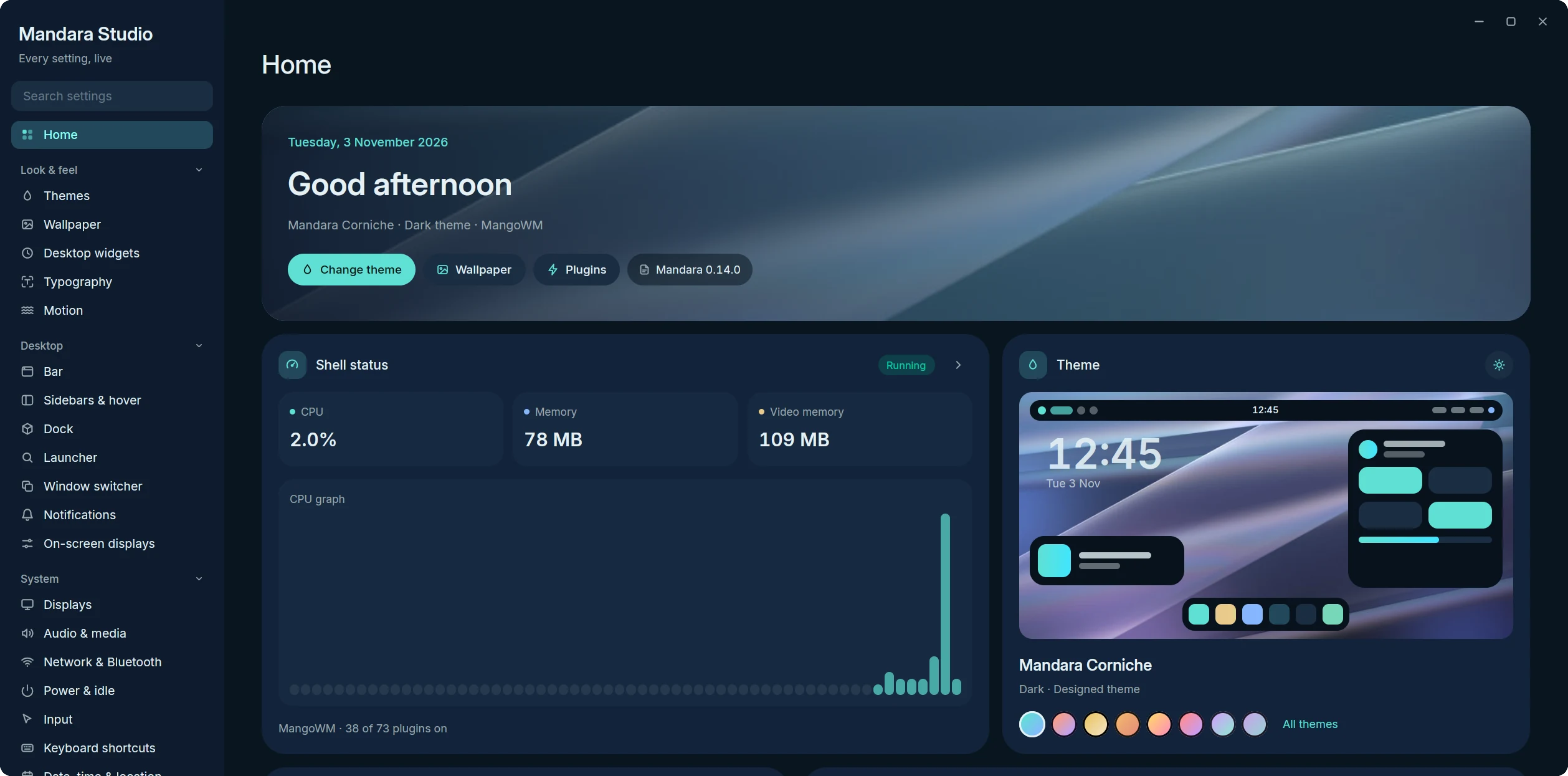
Home: a widget dashboard with live shell status, the current theme and its one-click switches, quick settings and recent changes
Home: a widget dashboard with live shell status, the current theme and its one-click switches, quick settings and recent changes
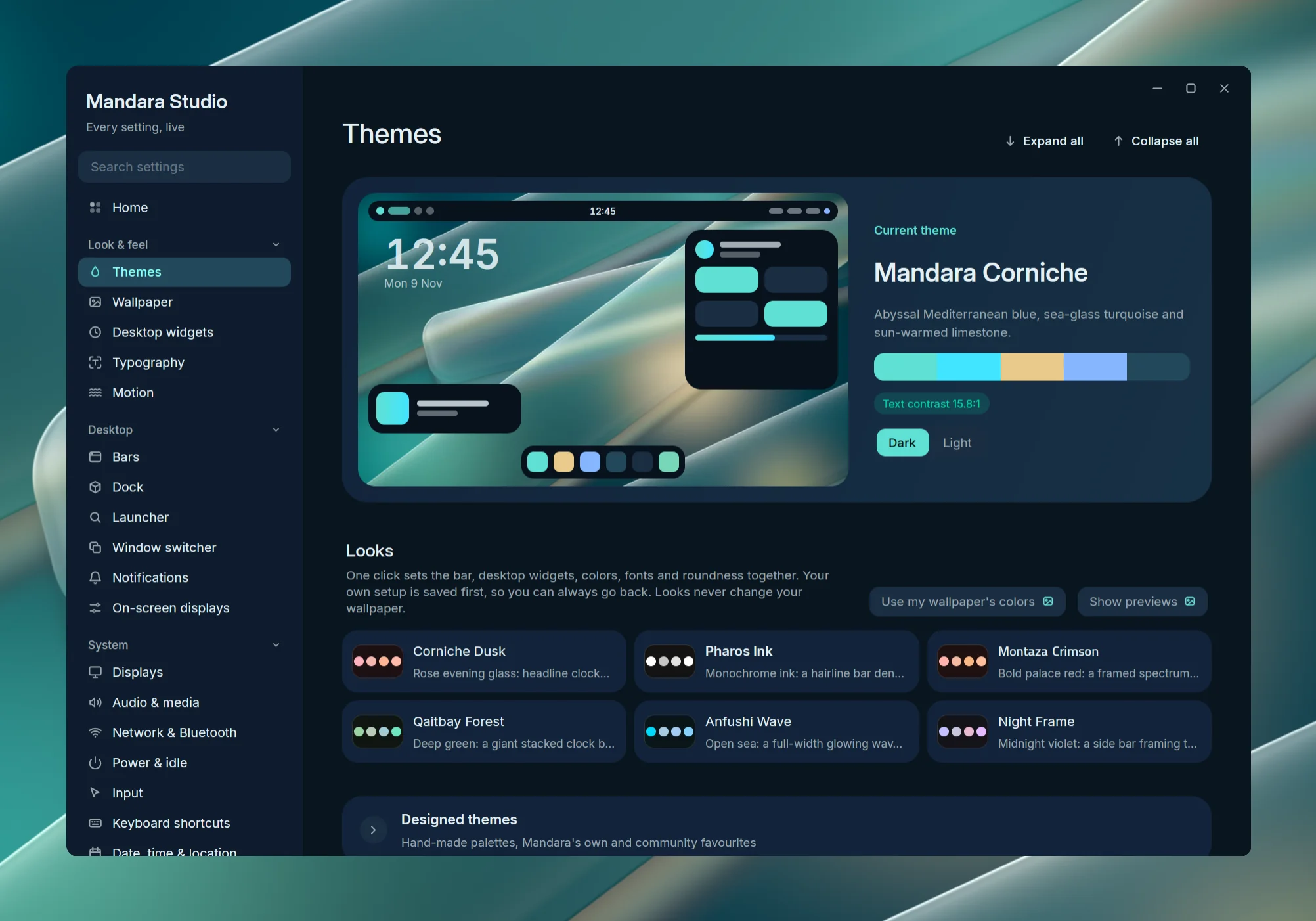
Themes: a live preview of the shell in the current theme, its palette and contrast, light / dark, then the Looks, designed themes, wallpaper colors and cursors
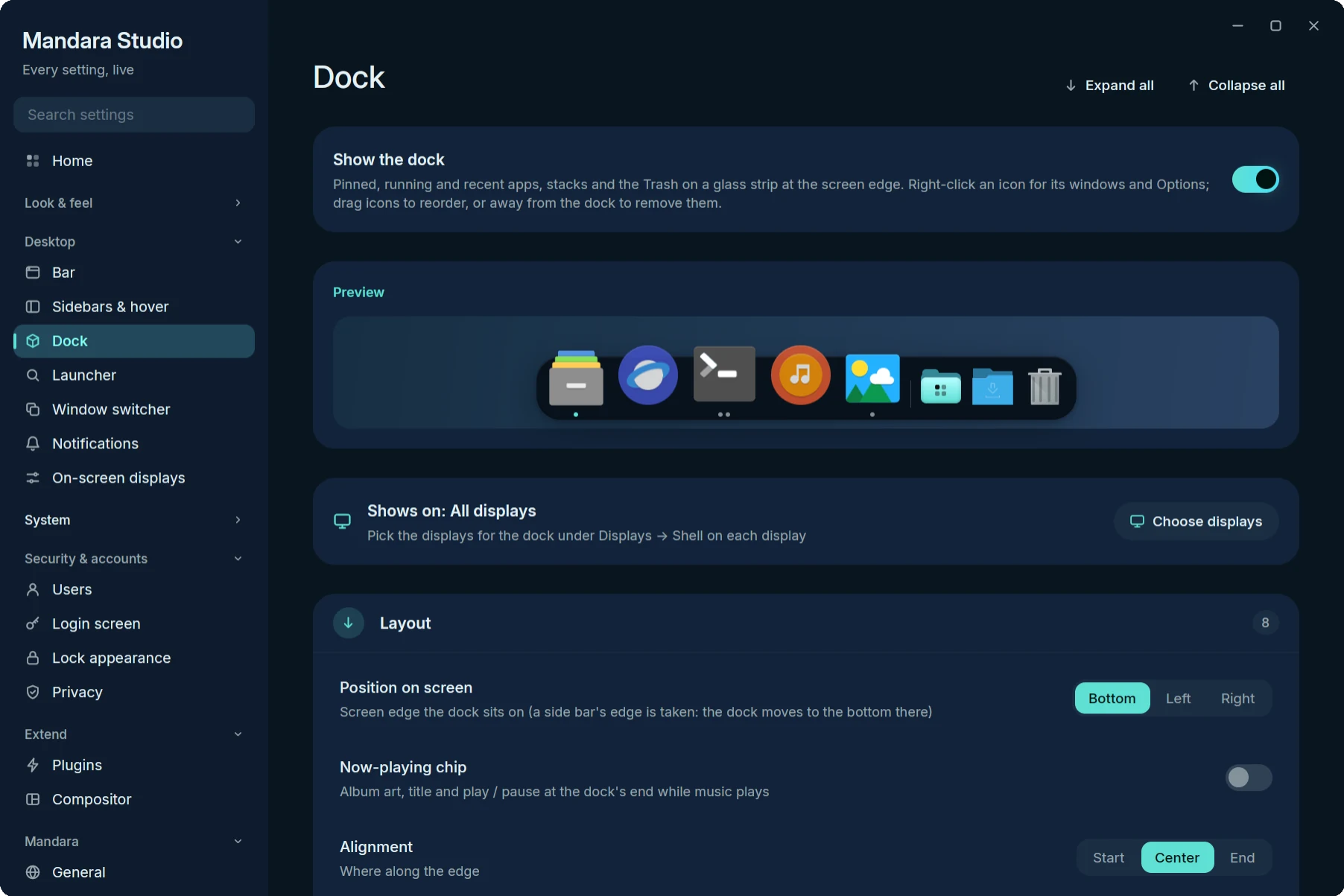 Navigation: grouped, collapsible, searchable |
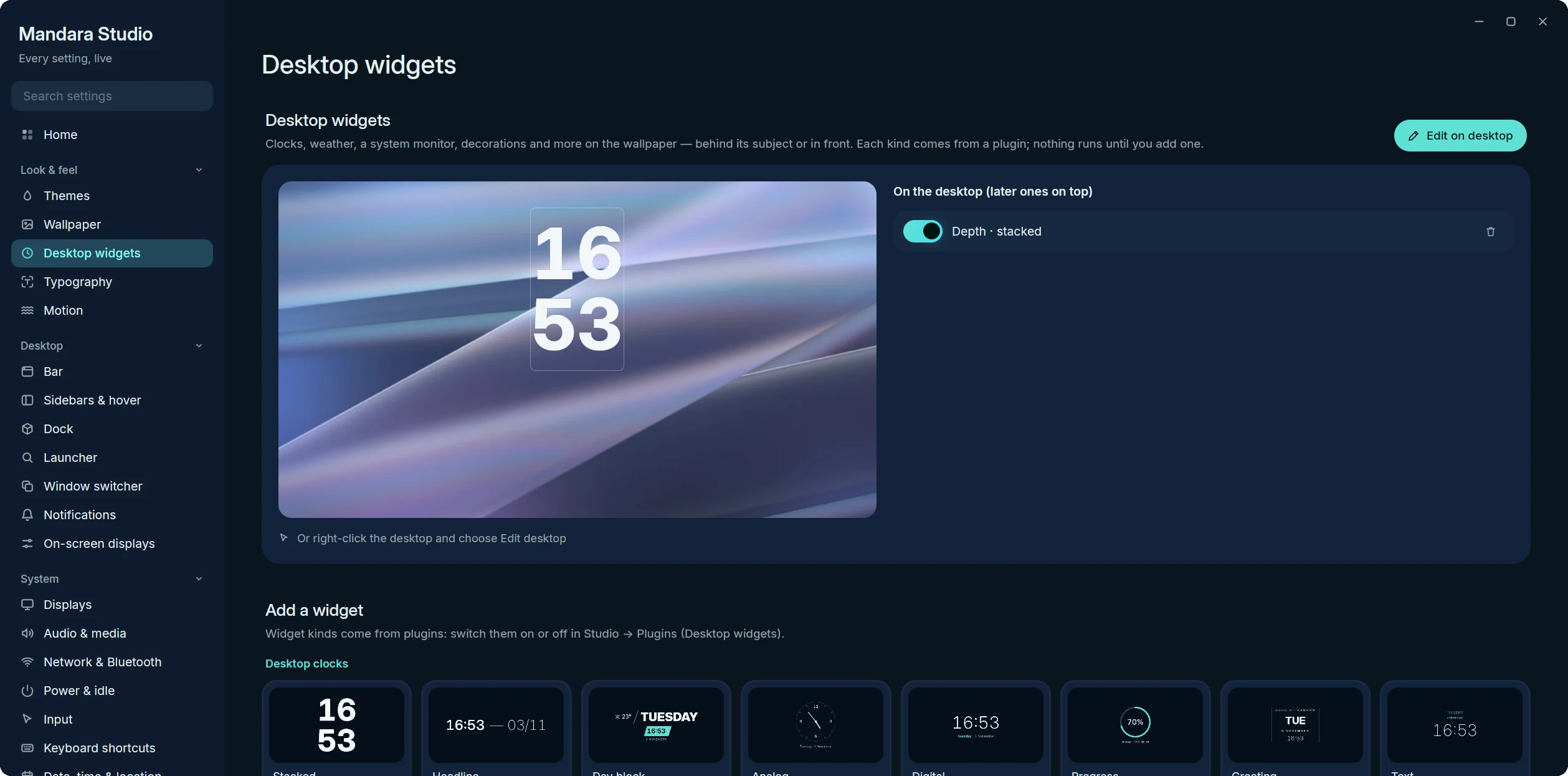 Desktop widgets: the preview, your widgets and the gallery |
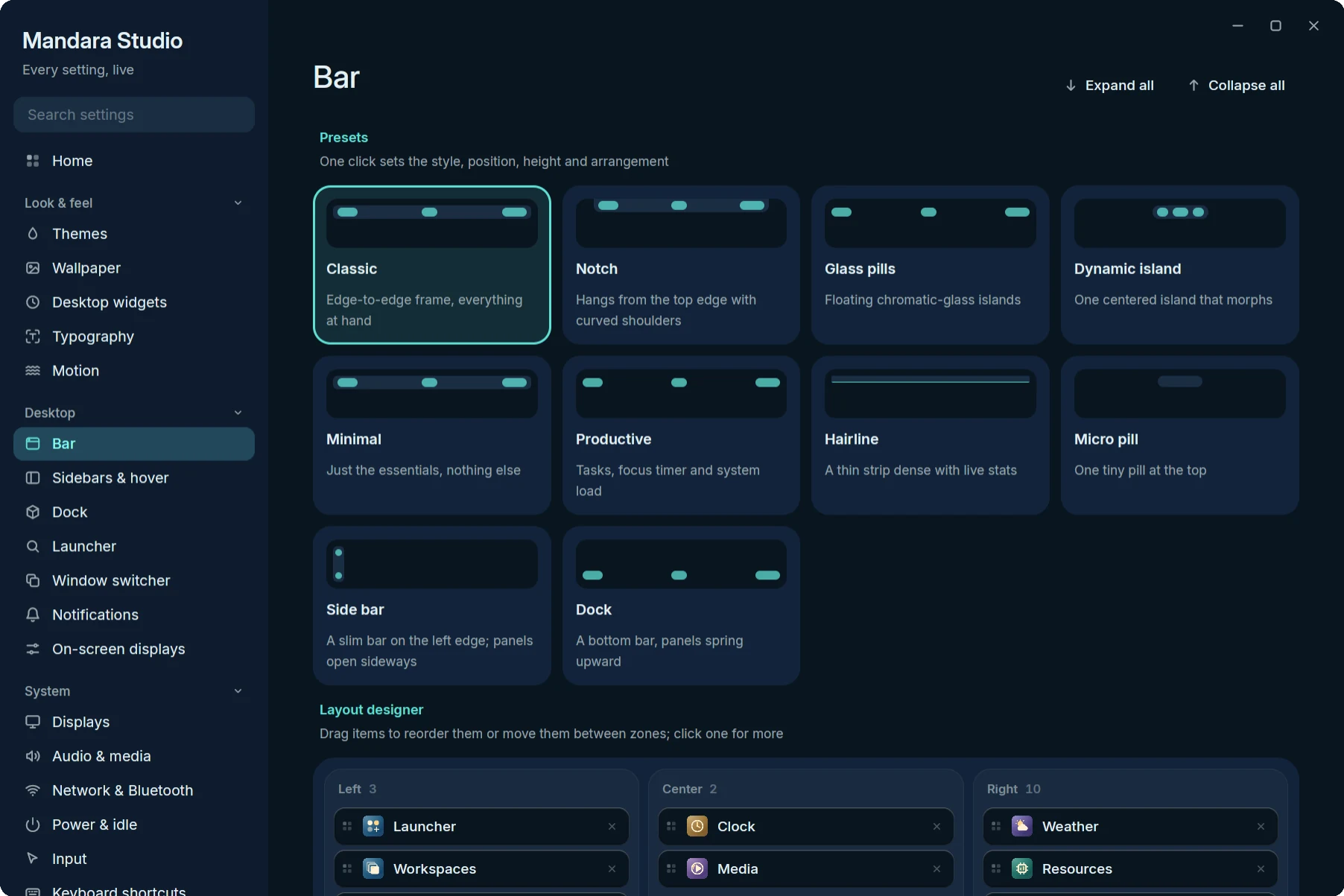 Bar: shape, appearance and item capsules |
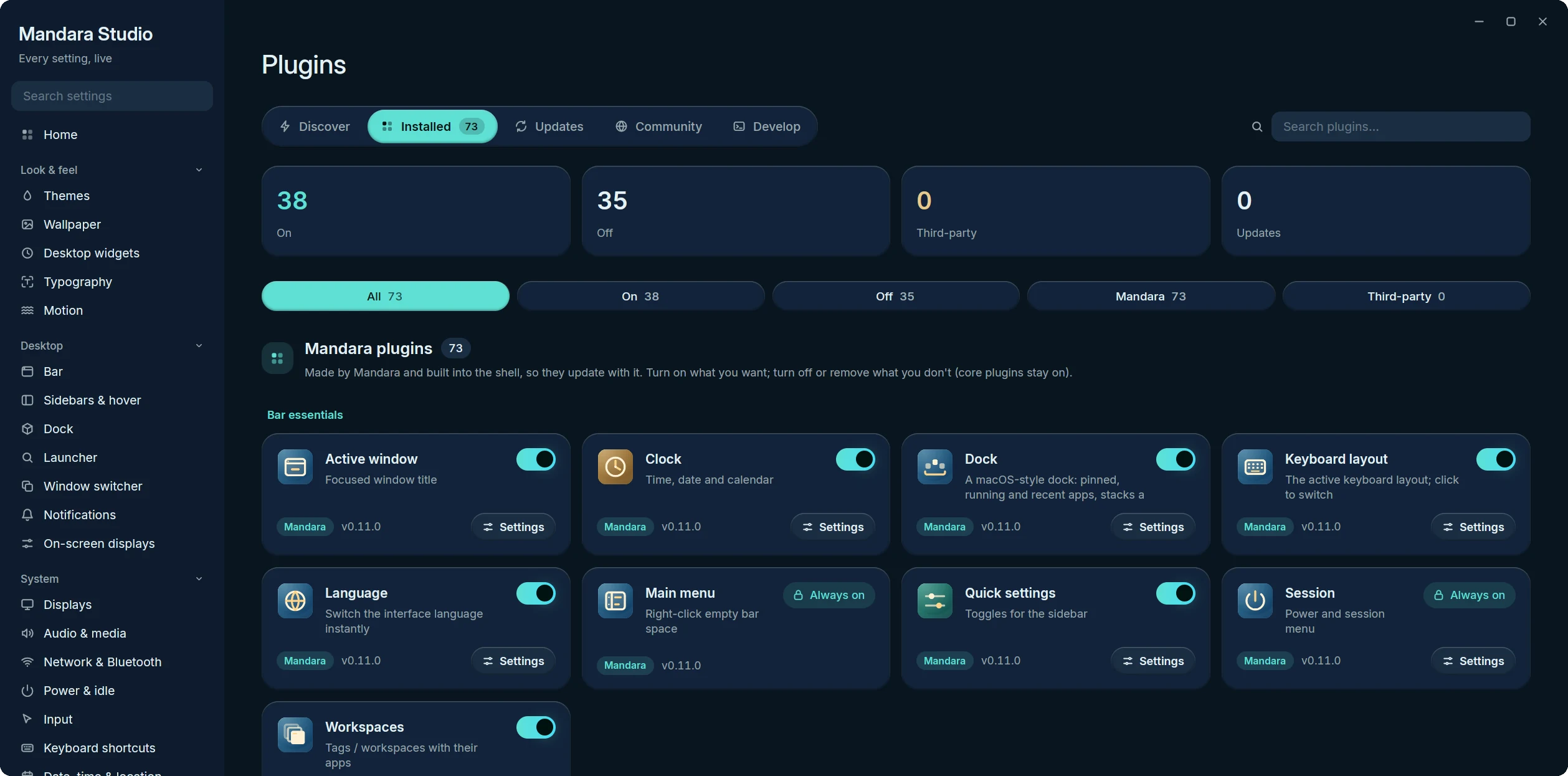 Plugins → Installed |
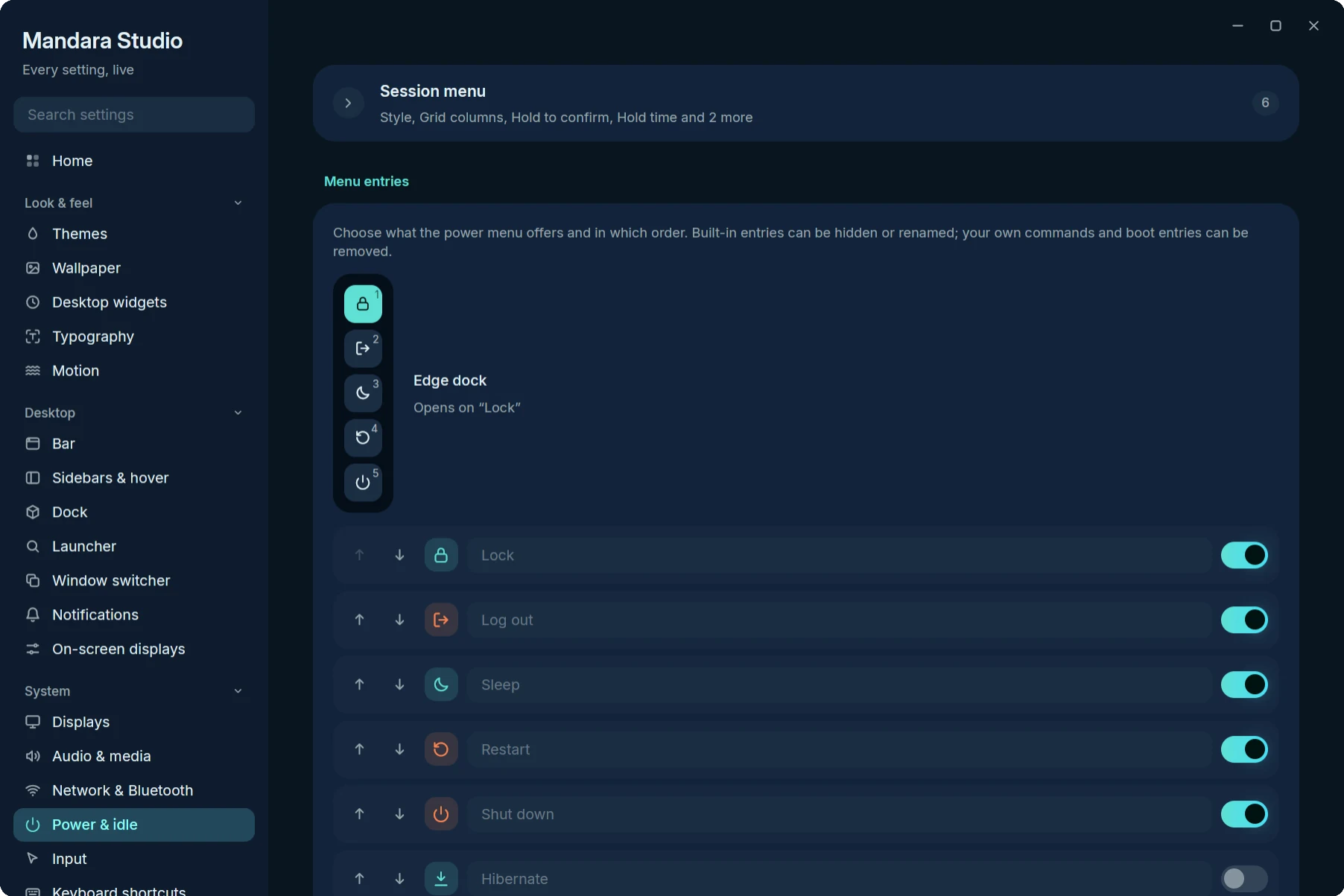 Power & idle: the session menu editor |
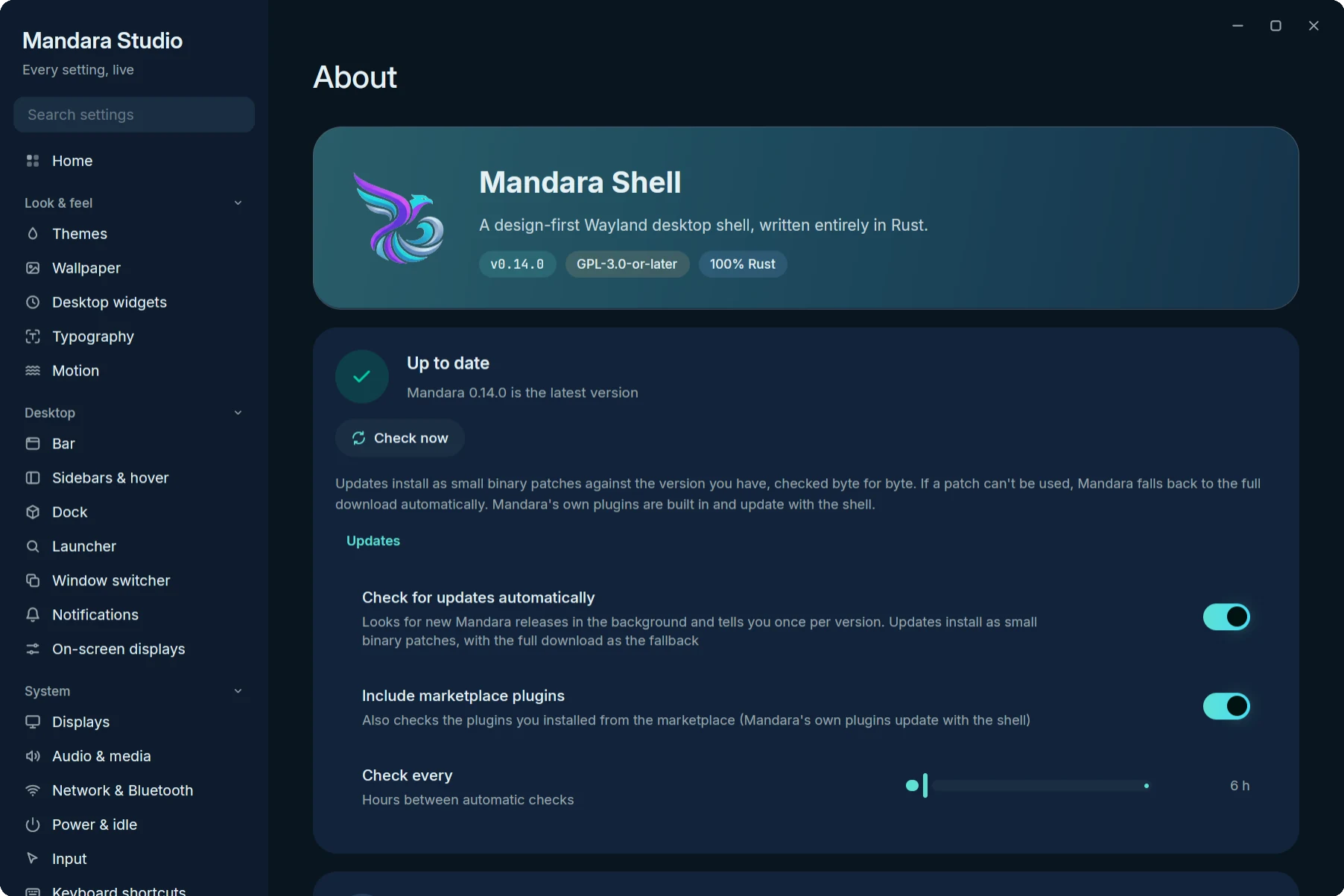 About: version and binary-patch updates |
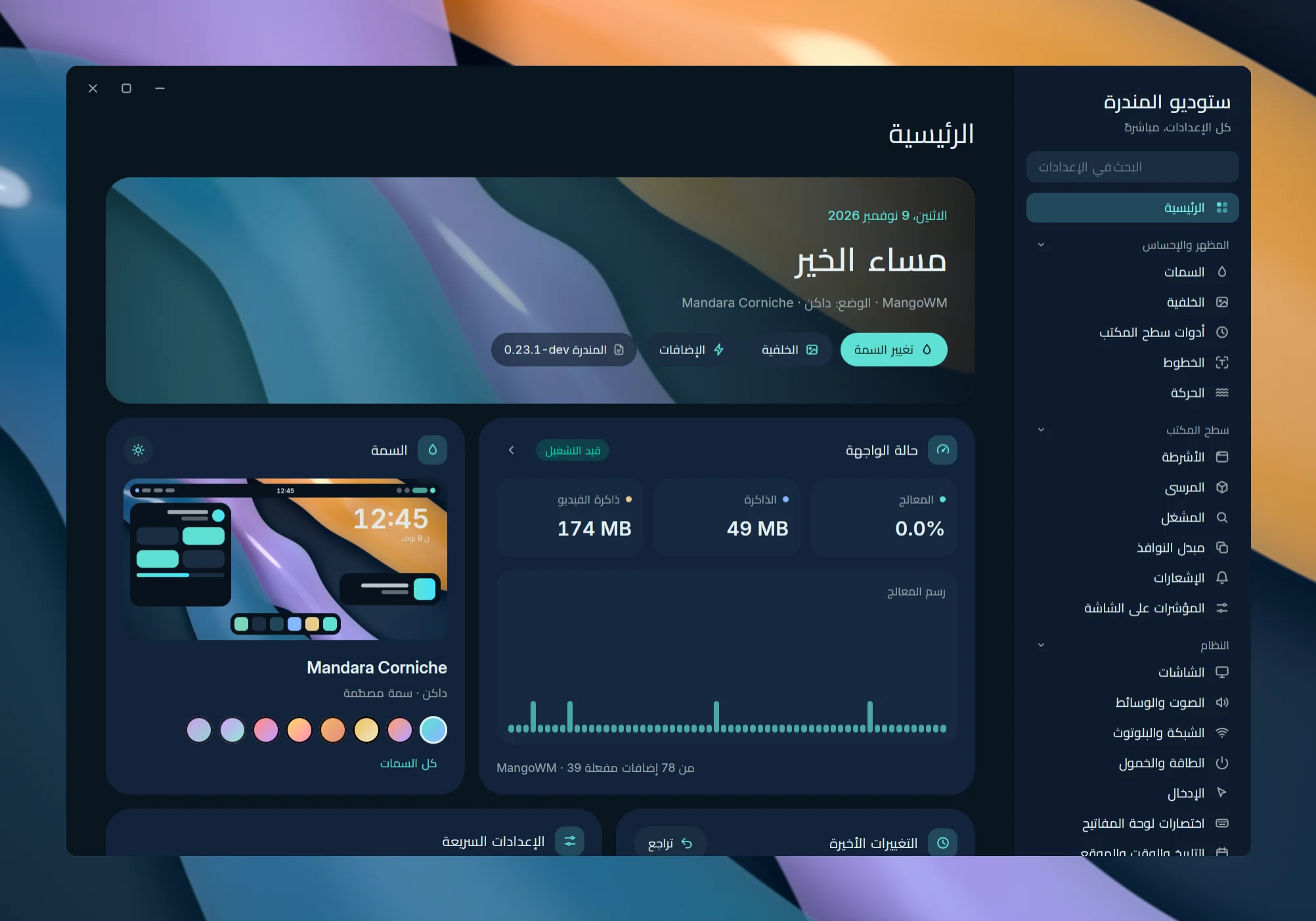 العربية: every page mirrored right to left, «ستوديو المندرة» |
|
## Pages
### Home
The landing page, laid out like a widget dashboard:
* **Greeting** — good morning / afternoon / evening and today's date over
your live wallpaper with an accent wash, the theme, mode and compositor,
the version, and shortcuts to Themes, Wallpaper and Plugins.
* **Shell status** — running or not, live CPU (with the last minute as a
sparkline), memory and video memory, sampled once a second only while Home
is on screen, plus the compositor and how many plugins are on. The arrow
opens Performance.
* **Theme** — a live mock of the shell in the current palette over your
wallpaper, a sun / moon button that flips light and dark, and swatches of
the designed themes: one click switches. *All themes* opens Themes.
* **Quick settings** — light / dark and bar style as choices, then night
light, reduce motion and high contrast as tiles (the whole tile flips it;
a tile that can't apply in your setup says why).
* **Recent changes** — the newest edits made in Studio with how long ago and
an Undo, the number of saved profiles and shortcuts to Profiles & backup.
* **Browse settings** — a card per group with its icon, summary and a pill
for each of its pages.
The two rows of widgets sit side by side on wide windows and stack on
narrow ones; everything mirrors for right-to-left languages.
### Look & feel
| Page | What it covers |
|---|---|
| **Themes** | Every color and shape choice on one page, laid out like a theme store, in two tabs. **Colors & style** (the first) opens with a **live preview**: a large mock of the shell (bar, desktop clock, a panel, a media card and the dock) in the current palette over your wallpaper, beside the theme's name and description, its palette strip, the text contrast ratio and the light / dark switch. Then **Looks**: six original one-click looks (Corniche Dusk, Pharos Ink, Montaza Crimson, Qaitbay Forest, Anfushi Wave, Night Frame), each bringing its own component designs (named on the Look, e.g. *Expressive components*, unless *Keep my component designs when changing looks* is on in the Components tab) as a compact list — a swatch of the look's palette, its name in its own display face and one line, the current one checked, a live mock of it on hover — or, with **Show previews**, as big cards with that mock (Studio remembers the choice in `studio-ui.toml`); a click sets bar style, desktop widgets and cards, colors, fonts and roundness together after saving your setup, *Use my wallpaper's colors* keeps the look but takes the palette from your wallpaper, *Restore my look* brings your setup back (looks never touch the wallpaper). Then **Designed themes**: every built-in and user theme as a compact row (a swatch of its surface and accents, its name and description, the active one checked, a mock of the shell in it on hover), or with **Show previews** as cards with a mock in the current mode, the other mode inset in its corner, a palette strip and its description. Then **Colors from your wallpaper**: on / off, the wallpaper, its lead colors and every Material You scheme style drawn as the palette it would make. Then **Other apps**: the apps Mandara can theme as a grid of small tiles grouped into desktop toolkits (GTK, Qt, Kvantum, KDE), terminals (Ghostty, kitty, foot, Alacritty, WezTerm, tmux, Zellij), editors (Zed, Helix, Neovim) and apps (Fuzzel, btop, Firefox, Vesktop, Cava, Spicetify), each with a switch and a chevron that opens a card with where its theme goes and how to select it (Kvantum's also holds *Use the Kvantum theme*). Every app is off until you switch it on: Mandara writes nothing to other apps before that, and switching one off takes back exactly what it changed and restores any file it replaced. Then **Cursor** (the opt-in *Cursor themes* plugin; off, a one-line card offers it; see *Cursor themes* below): your cursor drawn from its own files at its size, every cursor setting, and a gallery of the ten most popular ricing cursor themes to download, apply and remove. The **Components** tab (`mandara studio themes/components`) shows how the shell's and Studio's own controls look; Studio follows a change at once. Every design tile has the same size (the name on one line, its description clamped to three lines), and the previews are still pictures or the real controls with nothing kept alive between visits. At the top, **Presets**: *Classic* (the default), *Material You*, *Expressive*, *Minimal* and *Brutalist soft*, each a tile with a strip of its button, switch and meter; a click sets every component design at once (corner size, shadows, panel edges and the slider handle stay yours), and the one your designs match is marked *In use*. Then one card per component, each design drawn as the real control. **Sliders** shows the five designs of the thick volume, brightness and mixer sliders side by side, each drawn as a real slider you can drag to try (dragging never changes your setting; click a design's card to use it): *Classic* (the default: the fill, a small gap, an upright handle, then the rest of the track ending in a dot), *Continuous* (one track with a short grip inside the fill's end), *Pill* (a round knob on the fill's end that stretches into a pill while held), *Wavy* (the classic layout with a gentle wave along the fill that flows while you drag, still with reduced motion) and *Segmented* (ten rounded steps). Under them sits **Slider handle**: *Line* for the upright handle between a slider's fill and its track, or *None* for the fill's rounded end alone; it shapes every thin slider and the Classic, Continuous and Wavy designs, and says so while Pill or Segmented is picked. Thin sliders (Studio's rows and the shell's settings sliders) always keep the classic look. **Buttons** (the panels', sidebar's and main menu's text buttons, Studio's buttons and the round icon buttons; filled buttons stay the main action): *Classic* pills, *Square* (12 px corners), *Expressive* (round at rest, the corners spring to 8 px while pressed and back), *Cut* (corners cut at 45°) and *Elevated* (a soft shadow that lifts on hover and settles while pressed; none while Shadows is off). **Toggles** (every switch, tray menus' check boxes and radio buttons, Studio's check boxes; flip the previews to try them): *Classic*, *Material* (an outlined track whose thumb grows and carries a check when on), *Expressive* (the thumb stretches as it slides, check boxes round into circles as they fill, the radio dot springs in) and *Round*. **Text fields** (every text field and the panels' search boxes; the previews are real fields): *Classic*, *Filled* (small top corners and an underline that thickens in the accent colour while focused), *Outlined* (the outline thickens while focused and the hint floats up into it once the field is focused or holds text) and *Pill*. **Chips and choices** (Studio's choices, the panels' segmented controls and filter chips): *Classic*, *Material* (an outlined group with fine dividers, the chosen option tinted) and *Connected* (separate buttons a hair apart with small inner corners; the chosen one fills and rounds fully). **Progress** (the panels' meters, progress rings, the OSD level, notification progress and Studio's progress bars): *Classic*, *Material* (a gap after the fill and a stop dot at the end; rings get a gap between fill and track), *Wavy* (the fill as a still wave inside the bar's own height, flat when nearly empty or full) and *Segmented* (ten steps, twelve on a ring). **Card corners** (*Rounded*, *Asymmetric* with large leading-top and trailing-bottom corners, *Square*, *Squircle* with smooth continuous corners, *Cut*; squircle and cut cards are drawn row by row and clip their contents to the rounded rectangle inside them) and **Card style** (*Tonal*, *Raised* on a soft shadow, *Outlined*) shape the cards in panels, the sidebar and Studio; Corner roundness under Fine-tune still sets their size. Springs follow the animation speed and stop with reduced motion, and everything mirrors in right-to-left languages. Below them, under **Fine-tune**: automatic light / dark and its schedule, palette tuning (accent vividness, hue, lightness, specular rim), theme crossfade, style (corner roundness, shadows, panel edges, backdrop dim), icons and high contrast. `mandara studio appearance` and `mandara studio looks` still open it. |
| **Wallpaper** | Opens on the **Wallpaper** tab, always: the wallpaper on your desktop shown large at its own shape, with its file name, resolution and aspect, size, folder (click to open it), its colours as the theme engine reads them (*Use for my theme* turns on Match colors) and quick actions (*Change folder*, *Open folder*, *Surprise me*, *Show on the login screen*). Below it, **In this folder**: every image and video in your wallpaper folder as a grid of cached thumbnails, decoded at the size they're drawn and loaded one page at a time (it opens on the page with your wallpaper, which is marked *Current*). Click a wallpaper or move with the arrow keys, Home / End and Page Up / Down and press Enter to switch (with the desktop's transition); filter by name; hover a tile and press **+** to add it to the slideshow playlist. The picker's settings follow, and while the generator or Wallhaven plugins are off, one-line cards offer them. **Slideshow**: an on / off switch with the next change's time (or why it's paused), *Previous* and *Next wallpaper*, interval presets from 5 minutes to a day plus *Custom* (`45`, `90m`, `2h`, `1d`, up to a week) and the order (shuffle without repeats, random, by name, newest first); then folds for the **source** (your wallpaper folder, another folder, all sub-folders, separate light- and dark-theme folders, or the **playlist**, shown as thumbnails with remove buttons), **when to change** (at login, pause during fullscreen / on battery / while locked, only between two times), the **slideshow transition** (the desktop's, or fade / wipe / grow / none with its own length) and **displays** (the same wallpaper everywhere or a different one on each display). A fixed light or dark wallpaper, which would hide the slideshow in that mode, is pointed out with a button to clear it. **Fit & effects**: drawing the wallpaper, crossfade, fill mode and colour, transition, sharing with the login screen, light / dark wallpapers, video wallpapers (pause behind windows / on battery, frame-rate limit, first frame only) and the depth clock: the depth effect, how the subject is found (Hand-tuned or Model), the model's automatic split or Clock depth slider, Download, Regenerate and Place the clock; any new wallpaper setting lands here unless another tab claims it. **Generator** (with the wallpaper generator plugin on): a large live preview of the recipe (re-rendered off the UI thread as you drag, the last picture kept until the next is ready), the seed (shuffle, lock, *Surprise me*), five clickable **variations**, light / dark, the size (1080p to 8K, ultrawide, portrait or *Match display*) and format (WebP, PNG, JPEG, each with its expected file size), **Generate wallpaper** and **Generate loop** (seconds, fps) with progress and cancel, then the result with *Set as wallpaper*, *Show in folder* and *Remix*. Below: a **style gallery** previewing your palette and seed, the **palette** tiles (curated, *Match theme*, *Custom* with 2–8 hex stops), **Fine-tune** sliders built from the engine's parameters (the style's own, then tone, light, texture and layout, each group with a reset), **Recent** generated files (Remix, Set, Delete twice to confirm) and the opt-in **schedule** (interval, what to make, still or loop, keep N, apply, next run). **Online** (with the opt-in **Wallhaven** plugin on): *Browse in the picker*, the default search and sort order; off, the picker has no Wallhaven source. `mandara studio wallpaper --tab slideshow` opens a tab directly. |
| **Desktop widgets** | **Edit on desktop**, then **Widgets** (clocks incl. the depth clock, system monitor, decorations, plane visualizer: add from the gallery, one tile per family of look-alike widgets, then pick its **Style** — a new widget starts in front of the wallpaper's subject on a free spot, and a tile already on the desktop is ticked and selects it instead of adding a copy — drag on the live preview, style each one; repeats are numbered, *Remove duplicates* takes exact copies away) and **Desktop cards & visualizers** — now playing, calendar, glowing wave, framed bars, mirrored bars: on / off and where each sits (nine anchors; top or bottom edge for the strips); each lives on its own small surface only while it shows. `mandara studio desktop-widgets` opens it. |
| **Typography** | Interface, display, Arabic and monospace fonts, size and weight; a font per surface (bar, panels & plugins, desktop widgets, lock screen and its clock, Studio). Every font button opens a floating, searchable list of installed fonts, each in its own face, under the button (or above it near the bottom of the window) without moving anything around it: type to search, Up / Down, Page Up / Page Down, Home / End and Enter to pick, Esc or a click elsewhere to close; any typed name works too (*Use “…”*). |
| **Motion** | [Spring presets, a replayable preview, stiffness, damping, mass, animation speed, intensity, system reduced-motion preference and per-surface transition speeds](motion.md). |
### Desktop
| Page | What it covers |
|---|---|
| **Bars** | Five tabs keep related controls together: **Bar** (presets, plugin layout, position, spacing, shape and appearance), **Side bars** (left/right plugin groups, pinning, shape and material), **Sidebar** (widget tabs and cards, layout, appearance and motion), **Drop-down panels** (main menu, panel geometry, material and animation), and **Edges & corners** (hover triggers, hot corners and rounded screen corners). |
| **Dock** | A macOS-style dock. On / off (a hint and *Show it now* when auto-hide keeps it out of sight), live preview, then six groups with their own Reset: **Layout** (position, alignment, size, magnification and its size / spread, only this display's windows), **Behaviour** (automatically hide and show — off / on / when a window overlaps — reveal and hide delays, slide speed, keep windows clear, above fullscreen, animate opening applications, bounce for attention, minimize windows into application icon, names on hover), **Apps** (the apps kept in the dock with icons: drag to reorder, × to remove, **Add app…** opens a searchable picker of installed apps with pinned ones checked; running apps, open-app indicators, recent apps and how many, notification badges, progress bars, window count, most apps, the **launcher button** — listed and dragged with the apps, **Add the launcher** brings it back —, the **now-playing chip** — album art, title and play / pause at the dock's end while music plays), **Applications folder** (on / off — a folder on the right of the dock that opens a Launchpad-style grid of your apps, with search, category chips and a right-click menu, and installs apps dropped on it — view as Grid / List, order A–Z / Most used / Categories, icon size), **Stacks & Trash** (each folder with View as Automatic / Fan / Grid / List, Sort by date added / modified / name / kind, Display as Stack / Folder, add a folder; Trash, files per stack, files in a fan — Automatic always fans the newest that many files, however big the folder — and show file names) and **Appearance** (glass opacity and accent tint, corner radius, padding, icon spacing, distance from the edge, shadow, specular rim, separators, not-running opacity). Which displays show it is set under Displays. On the dock itself: right-click an icon for its windows, New Window and the app's actions, **Options ▸ Keep in Dock ✓ / Open at Login ✓ / Show in Files** (and Uninstall… for apps Mandara installed), Show All Windows, Hide and Quit (Force Quit once a quit didn't take, or with Alt held); right-click empty dock space for Add app…, Keep the launcher in the Dock, auto-hide and magnification; drag icons to reorder, a running app into the pinned ones to keep it, or away from the dock to remove it; drop files on an app to open them with it, on the Trash to trash them, and installable apps on the dock or the Applications folder to install them. Click a stack for its fan (the newest files on an arc that pops up out of the icon as one piece, names in pills, *Open Downloads · N more* (the folder in your file manager) at the top) or its grid (arrow keys, Enter, type to filter, right-click for Open / Show in Files / Move to Trash); the dock stays out while a stack, the Applications grid or a menu is open. |
| **Launcher** | Sections in setup order. **Launcher looks**: Classic, Grid and Beacon as three cards of exactly the same size (a miniature, the name, a two-to-three-line description and tags for the layout and placement), a click applies one; **Preview** opens the launcher. **Placement**: a small screen diagram with the bar along its edge and seven clickable spots — top left / middle / right, the center of the screen, bottom left / middle / right (the screen's own sides, also in right-to-left languages) — the chosen one highlighted, a line on how it looks with your bar (grows out of the bar like its panels, a floating card under floating pills, or "the bar is on the other edge" when it opens from the bare screen edge; a note when the dock makes it float above the dock, click only), and **Preview** to open it, with **Size & placement** under it (align to the launcher button, search field, width / height when attached and in the center). **Launcher button**: its icon picker. **Search & results**: style, layout, visible results, app icons, the grid and the Beacon bar, providers and prefixes, ranking, and what the ranking has learnt. **Behaviour**: on / off, dim, keyboard only, remembering the last search, launch prefix and systemd scopes. **Apps**: pinned and hidden apps and your own names and icons. Then slash commands and skills. |
| **Window switcher** | Alt+Tab style and scope, previews, screen time. |
| **Notifications** | Popup placement, size and timeouts per urgency, rules per app, do not disturb and quiet hours, history limits. |
| **On-screen displays** | Every OSD kind, orientation, scale and offset. |
### System
| Page | What it covers |
|---|---|
| **Displays** | **Arrangement**: the canvas, a card per display under it with two or more (also one that's off), Apply / Reset with a keep-or-revert countdown, and the selected display's power, resolution, refresh rate, scale, rotation and adaptive sync in aligned rows; **Shell on each display** (bar, dock, OSDs, launcher & pop-ups, notifications, wallpaper); **Profiles** as same-size cards (Apply, Delete, *Connected*), *Save as profile*, keep after restart and the revert / auto-profile settings; **Monitor brightness** (DDC/CI); **Night light**. |
| **Audio & media** | Per-app mixer and outputs, default devices (rename, hide), volume step and ceiling, ignored players, shell sounds, visualizer and lyrics. |
| **Network & Bluetooth** | Connection details, VPNs (WireGuard / OpenVPN import), hotspot with QR, saved networks, static IP / DNS; Bluetooth devices, pairing dialog, auto-connect, adapter. |
| **Power & idle** | Status, idle timeouts (mains / battery), lock behaviour, idle commands, battery alerts (the Power panel's style, Classic or Modern, and the bar battery's pulses: coral while critical, a gentle breath while charging) and profiles, the power menu editor (entries, style, and the dock's **Position**: opposite the sidebar, left, right, top center or bottom center — at the top or bottom it hangs from the bar there, one piece with it in the edge-frame styles and a card next to a floating bar, or from the screen edge when the bar is elsewhere, which the preview says; the grid always opens in the middle, and so do the **Cards**, separate floating cards in a **Row** or a **Column** under *Card layout*, which locks the position with that reason), event hooks. |
| **Input** | Keyboard layouts and labels, repeat, Num Lock; mouse and touchpad; focus follows mouse. The cursor lives on Themes → Cursor (a card here links there). |
| **Keyboard shortcuts** | Mandara's compositor binds with chord capture and conflict detection. Under **Add a shortcut**, choose a starting action, press the chord, then choose **Program** to enter any command. Existing compositor shortcuts are listed below and kept intact. |
| **Date, time & location** | The system clock (time zone with search, set time automatically, and a one-click fix when it doesn't match your location's time zone), clock and date formats, the calendar's week numbers, weekend days, Hijri dates and Eastern Arabic numerals, calendar subscriptions and reminders, the shared location (weather and prayer times follow it unless they have their own), weather. |
| **Applications** | Installed apps (search, hide, rename, install from files by picker or drag and drop, uninstall with optional leftover cleanup), default apps, apps at login, how apps are launched. |
### Security & accounts
| Page | What it covers |
|---|---|
| **Users** | AccountsService accounts: create, edit, delete, photos, passwords. |
| **Login screen** | Mandara Login (greetd greeter) with a live, draggable preview; beside it Apply to login screen, Preview full screen and **Try it** (entrance, typing, wrong password, success, idle clock). Tabs: Looks (six ready-made designs, Mandara, Midnight card, Material You, Ghostline, Chrome Halo and Meridian, three to a row, each with a miniature drawn from its own layout so the sign-in shows on its side), Layout, Background, Clock, Sign-in, Session, Theme, Motion; settings that depend on another one show only once it's on. The **Login manager** tab to switch login screens (Mandara Login, other greetd greeters, SDDM, GDM, …): **Use** for an installed one, **Install & use** for one that isn't (it installs the login manager or greeter with greetd, cage or LightDM's greeter through the system's package manager, after showing the plan). |
| **Lock appearance** | Clock style, background, avatar, media, weather, notifications, battery and its low-battery mark, OLED care. |
| **Privacy** | Microphone / camera / screen-share indicators, offline mode. |
### Extend
**AI Shell Agent** configures offline natural language commands, downloads
and verifies models, and provides a dry-run test bench. See
[Local shell commands](command-agent.md).
| Page | What it covers |
|---|---|
| **Plugins** | A plugin store: Discover (featured hero, curated shelves, search with filter chips), Installed, Updates, Community (the GitHub marketplace) and Develop (the authoring handbook and validator); per-plugin product pages and settings modals, which hold each plugin's own options (clipboard history, screenshot, weather, prayer times…) — including refresh intervals, how many rows a list shows and alert thresholds (Resources, Process hunter, Containers, Services, Drives, Network speed, Network, Clock, To-do, Bluetooth, Authenticator). To-do adds its default list, show completed, sort order and what the bar counts; Notes its default topic, the notes folder (point it at a synced folder or an Obsidian vault), preview by default and the editor font and size. [Configuration](configuration.md) lists every setting by page. Every Mandara plugin can be switched off (it then stops everything it runs: bar item, sidebar card, launcher entries, background polling) or **removed** from the detail modal: off, out of the bar and sidebar, and parked under *Removed Mandara plugins* (their store cards offer *Add back*) until **Restore** puts it back where it was. Core plugins (launcher, session menu, main menu) show *Always on*. The dock, mini stats, screen time and prayer times ship off. |
| **Compositor** | The **Config doctor** (your compositor's own checker on your config: problems by file and line, explained, with reversible fixes), then MangoWM / Niri / Hyprland / Umbriel / Sway / River gaps, borders, rounding, blur, rules, tags, layouts; written to `~/.config/mandara/generated/`. KWin uses native Plasma protocols; its compositor settings remain in Plasma System Settings and Studio explains the locked controls. |
### Mandara
| Page | What it covers |
|---|---|
| **General** | Language (a language whose pack is missing downloads it: its card fills with the download, turns green with a check when it's in, or red with the reason and Retry if it fails; see [Languages](languages.md#language-packs)), units, week start, polkit agent, lock routing, keyrings & passwords (GNOME Keyring prompts, KeePassXC dialog, unlock at login), restart after a crash. |
| **Profiles & backup** | Recent changes with undo, named profiles, export / import, reset a page, support report. |
| **Performance** | The shell's own CPU, memory and threads, Studio's separately, frame-time diagnostics, restart / quit. |
| **Maintenance** | Health checks with repair, downloads, cache cleanup, backups, factory reset. |
| **About** | Mandara updates (binary patch first, full download as the fallback; marketplace plugin updates), version, compositor, theme, config path. |
## In depth
- **Desktop widgets** (Wallpaper): a scaled preview of the display — the
wallpaper's thumbnail with every widget drawn by the shell's own
software painters — above a gallery that adds a clock (live
thumbnails), the system monitor, a visualizer shape or a decoration
preset (*Alexandria line*, *Vertical poem* with placeholder text to
replace, *Geometric set*). Look-alike widgets share one tile: the clocks
are *Stacked* (superscript, stacked card, framed HUD), *Headline*, *Day
block*, *Analog* (classic, cookie, orbit, hands over numerals),
*Digital* (clock, ring, time in a shape, dot matrix, pixel, digit boxes,
slanted HUD), *Progress* (day ring, wavy week, month bar, year in
dots), *Greeting* and *Text* (text lines, divided text, day numeral),
plus the depth clock; the monitors are *System monitor* (column,
gauges, meters, bars, wavy gauges) and *Thermals*. A tile adds the
family's first style, and the widget's **Style** row (a small picture
of each) switches it to another one in place: it keeps its spot, size
and displays and the colours, font and digits you chose, unless the
style sets them itself. A widget you changed since shows its closest
style marked *changed*. Drag a widget on the preview to move it; on
release it re-anchors to the nearest of nine anchors and keeps its
place. Select a widget (preview or list) to edit its depth (behind the
subject or in front), anchor, offsets, size, opacity and displays, and
its own settings: clock style, seconds, numerals, weather; monitor
readings (CPU, CPU graph, GPU, VRAM, memory, swap, GPU power, CPU and GPU
temperature, fan, battery, disk, download, upload and the network graph,
each switched on or off; a GPU reading the machine can't show is locked
with the reason), refresh and width; decoration text, size, weight, letter spacing, shape
and rotation; visualizer shape, bars, length, height, angle, gap, frame
rate and silence stop; font, colours (automatic, text, accent or a
custom `#rrggbb` / `oklch(L C H)`) and shadow / glow. The switch on each
chip turns a widget off without losing it. Every edit reaches the shell
at once. Nothing runs while the list is empty.
- **Layout designer** (Bar): the bar's **Left / Center / Right** zones
(*Top / Middle / Bottom* when the bar stands on a side edge) are columns
with their plugins stacked in order, side by side on a wide window and
one under the other on a narrow one; while side bars are on, their top /
middle / bottom groups flank the screen under them. Drag an item to
reorder it or move it to another zone, × takes it off, and a click opens
a menu: *Move up*, *Move down*, *Move to …*, *Remove from bar* and
*Details*. Under the zones, **All plugins** lists every plugin that can
sit on the bar in an aligned grid. Desktop-only widgets belong in the
**Desktop widgets** gallery. The bar items are grouped by category (a category list
beside the grid on wide windows, chips above it on narrow ones; faith
plugins have their own *Faith* category), with a search field that
filters as you type (names and ids that hold what you typed first,
name starts ahead of the rest; a fuzzy match for typos when nothing
does; then the category and description). Plugins on the bar show their zone, plugins that are off
say so. Click one for *Add to Left / Center / Right* (and the side bars
while they're on) or *Details*, or drag it onto a zone; placing a plugin
turns it on, and dropping a bar item on the list takes it off the bar.
The chosen bar preset stays highlighted when you keep your own items.
Manual item, layout or position changes clear that selection.
Bar presets (System monitor, Classic, Notch, Glass pills, Dynamic island,
Minimal, Productive, Hairline, Micro pill, Side bar, Dock, and the style
presets Expressive, Tile dock, Rail, Segmented, Stanley Bridge, Pharos
Beam and Raml Tram) apply the style in one click and keep your items;
each card draws its bar in miniature. System monitor is a style of its
own: a slim bottom status line of stat blocks in the monospace font.
Productive is a work desk along the bottom edge: the focus timer and the
window you're in sit in the middle, to-dos and notes on the left, system
load and the clock on the right, each zone on a soft capsule of its own. Turn on **Replace bar items** to use
the preset's arrangement too. **Profiles & backup → Bar** saves only
the bar and side-bar configuration, leaving the theme and desktop widgets alone.
- **Radii, per bar style.** *Bar radius* rounds the glass pills and the
island; on the edge frame it rounds the hover chips (and the frame's ends
when *Float the edge frame* is on). *Flare radius* is the concave curve
where the edge frame meets the screen sides, panels and the sidebar.
*Panel radius* rounds drop-down panels; *Corner radius* (Bars → Sidebar) rounds
floating or non-edge-frame side panels and the power dock. Themes →
*Corner roundness* multiplies every one of them and every card, chip,
button and row radius in the shell (0 = square, 2 = extra round); nested
corners stay concentric (inner radius = outer − padding, never below 0).
- **Controls that don't apply** to the current setup (flares without the
edge frame, rims and shadows on the flush edge frame, a margin while side
panels are flush, spring values while *Custom spring* is off) show why in
place of their control.
- **Reset** next to a group's title restores that group's defaults; it
appears once something in the group differs from them.
- **Everything is live**: the bar, open panels, the sidebar, the launcher,
OSDs and the dock redraw in place on every edit, without reopening.
- **Compositor control** for MangoWM, Niri, Hyprland, Umbriel, Sway and River: gaps, borders,
rounding, blur, shadows, opacity, window rules and keybinds, one-click
window-look presets and common window rules, gaps that follow the bar,
and Hyprland's layout (dwindle / master), border resizing and group tabs.
Changes go to `~/.config/mandara/generated/*`, and your own config only
gets one include line (with a backup), appended at the end so Mandara's
values win:
| | Include line | Autostart (drop-in) |
|---|---|---|
| MangoWM | `source_optional=~/.config/mandara/generated/mango.conf` | `exec_once=/abs/path/mandara` |
| Niri | `include optional=true "/home/you/.config/mandara/generated/niri.kdl"` (plain `include` before 26.04) | `spawn-at-startup "/abs/path/mandara"` |
| Hyprland ≤ 0.56 | `source = ~/.config/mandara/generated/hyprland.conf` | `exec-once = /abs/path/mandara` |
| Hyprland 0.57+ (Lua only) | `pcall(dofile, "/home/you/.config/mandara/generated/hyprland.lua")` in `hyprland.lua` | `hl.on("hyprland.start", …)` |
| Umbriel | `"/home/you/.config/mandara/generated/umbriel.toml"` in `[include.optional] files` (added to your list if you have one) | `general.autostart = ["/abs/path/mandara"]` |
| Sway | `include /home/you/.config/mandara/generated/sway.conf` | `exec /abs/path/mandara` |
| River | none (Mandara never edits `init`; its settings go over `river-control`) | `riverctl spawn /abs/path/mandara`, a line you add to `init` |
The dialect follows the installed version (`niri --version`,
`Hyprland --version`); each compositor's own checker (`mango -p`,
`niri validate`, `Hyprland --verify-config`, `umbriel config validate`,
`sway --validate`) must accept the result or the include is rolled back.
Sway has no rounded corners, blur, shadows or animations, and no opacity
rules that Mandara supports (its `opacity` command isn't a rule): while
it runs those rows are locked with that reason, and its tab says what
its drop-in carries (gaps, pixel borders, `client.*` colours, `for_window`
floating / sticky rules for both Wayland `app_id`s and X11 classes,
`input` / `seat` settings, `output` lines and `bindsym` keys). River's
tab says how its settings travel and shows the line to add to `init`;
gaps (including *Gaps follow the bar*), rounded corners, opacity, blur,
shadows and animations are locked there. Umbriel is the
exception to "Mandara's values win": it applies your `config.toml`
after its includes, so what you set there wins (rules from both files
are kept), and the Umbriel tab says so. On Niri the drop-in also makes workspace
backgrounds transparent: Mandara's wallpaper lives in Niri's Overview
backdrop and would otherwise only show there. On Hyprland 0.57 Mandara's
workspace clicks and other dispatches are sent as Lua
(`hl.dsp.focus({ workspace = 3 })`); `mandara msg compositor dispatch`
translates the common hyprlang dispatchers and passes `hl.…` text through.
- **Config doctor** (top of the Compositor page): the compositor's own
checker (`mango -p`, `niri validate`, `Hyprland --verify-config`,
`umbriel config validate`, `sway --validate --verbose`, whose verbose
output is what reports a key bound twice) run read-only on your
config and every file it includes, with its verdict in one line ("All good — checked 2 min ago
with MangoWM 0.18.4"). Problems are grouped by file, your files apart
from Mandara's drop-in, each with its kind (unknown, removed in this
update, deprecated, syntax error, invalid value, duplicate keybind,
missing file, not supported by this version), the line itself, a
plain-language explanation and the compositor's own message. Fixes:
**Open in editor** at that line, **Comment out** or **Remove line** (backup
first, checked again, undone automatically if it made things worse) and
**Regenerate** for the drop-in (an option this version rejects is left out
for it from then on). **Check again** re-runs it; **Remind me later**
quiets the start-up notification until the config or the compositor
changes. The same is `mandara msg compositor check` / `fix`, and
`mandara setup --check` / `--fix` without a running shell (see
[install](install.md#config-doctor)).
- **Notifications, On-screen displays, Privacy**: popup placement (or joined
to the bar) and timeouts per urgency, a rules editor with one-click rules
for recent apps, quiet modes, history limits; every OSD kind; indicator
ignore lists.
- **Audio & media**: per-app mixer (the row of the player the media panel
follows sets that player's own volume when it allows it, as in the shell),
default devices you can rename and hide, per-app outputs (calls to the
headset, music to speakers), volume step and 100 % / 150 % ceiling,
ignored media players, shell sounds with previews.
- **Displays**: drag monitors on an arrangement canvas (edges snap), pick
resolution, refresh rate, scale, rotation, adaptive sync and on / off over
`wlr-output-management` (MangoWM, Niri, Hyprland). Every change applies
with a 15-second "Keep or revert" countdown; saved profiles switch
automatically when the same monitors are plugged in (matched by EDID
make / model / serial), and *Keep after restart* writes monitor lines to
the compositor drop-in. **Shell on each display** chooses where the bar,
dock, OSDs, notifications and wallpaper appear (all, the main display, or
a list); the Bar and Dock pages link there. **Launcher & pop-ups** (the
launcher, Alt+Tab, the app installer and password prompts) open on the
display you're on when it is allowed, else on the main display; until
set, the row follows **On-screen displays**. External monitor brightness
works over DDC/CI (pure Rust, `/dev/i2c-*`, needs the `i2c` group).
- **Night light**: warm screens from sunset to sunrise (your location),
fixed times or always, with eased transitions, gamma and night dimming,
and pauses for fullscreen windows or chosen apps. Pure-Rust
`wlr-gamma-control` (MangoWM, Hyprland, Sway, and Niri on a real tty
session — a nested Niri has no gamma, and the tile says so),
also a quick-settings tile and `mandara msg nightlight toggle`. When a
screen refuses the warmer colours (another night-light app such as
wlsunset holds them, or the driver won't), a notification says so and
names the app it finds.
- **Plugins**: a plugin store with five places and one search. **Discover**
is the store front: a featured hero that rotates through the plugins'
cover art (paused under the pointer, stopped whenever Studio or the tab
isn't on screen), filter chips, and curated shelves built from the
categories — *Essentials*, *For your desk*, *Productivity*, *Media &
capture*, *System tools* — plus *New & updated* and *Community picks*
when there are any, each with *See all*. Every card has its cover art,
name, one-line pitch, a Mandara / third-party badge and a one-click
**Get / On** button that shows its state (off, on, removed → *Add back*,
update available → *Update*, core → *Always on*). **Installed** is the
library: on / off / third-party / updates counts, filter chips, grouped
cards with switches and Settings, and the removed built-ins with
**Restore**. **Updates** checks and applies marketplace plugin updates,
one by one or all at once. **Community** is the GitHub marketplace as
store cards (Get, Update, Remove); while it is empty or out of reach it
suggests Mandara plugins you haven't switched on. **Develop** is the
authoring handbook, built from your system: your real plugin folders (state,
counts, precedence), the folder and `plugin.toml` format, the sandbox
architecture with its real time budgets, the WIT contract, copyable
quick-start commands, and a validator that lists every local plugin with
its load status and actual error, and can test-load one. Click a plugin
for its **product page**: a hero over its blurred cover with the icon,
name, maker, Get / On and Settings; an info strip (category, version,
access, where it fits); the cover art with *More like this*; the full
description; *What's new* when an update waits; what it may access
(network, D-Bus services, files, compositor, …); its settings; the bar
zones it fits with add to bar or sidebar; and remove / restore /
uninstall. Cover art is decoded off the UI thread at the size it is
drawn, only for cards on screen. Its **settings modal** gathers every setting it
owns, from its own options to the shell sections it drives (Weather:
place, units, animation; Prayer times: location, method, Asr school,
Hijri adjustment; Screenshot: copy, save, timer, countdown, text
recognition, toolbar position and size, and the screen recorder: which
recorder (with the installed ones and what each supports), source,
display, countdown, resolution, frame rate, codec, quality, format,
sound and devices, folder and file name; choices the recorder in use
can't do are greyed out with the reason),
including the `[[settings]]` a third-party plugin declares.
- **Users**: create, edit and delete accounts through AccountsService:
full name, e-mail, language, administrator or standard, automatic login,
locking, and passwords (strength meter, hashed with SHA-512 crypt in pure
Rust, or "choose at first login"). Profile photos are cropped from any
image (zoom, drag to position) or picked from procedural Mandara presets;
the lock screen and Mandara Login show the same photo. You can't delete
yourself or the last administrator, and polkit asks for a password when
it's needed. Try it safely with fictional accounts:
`mandara studio users --demo`.
- **Network & Bluetooth**: connection details (addresses, gateway, DNS,
MAC, speed); VPNs with a connect switch, plus importing WireGuard `.conf`
/ OpenVPN `.ovpn` files into NetworkManager (`.ovpn` needs
NetworkManager's OpenVPN plugin, which the installer offers); a Wi-Fi
hotspot with a QR code phones scan to join; saved networks (auto-join,
priority, forget, static IP / DNS, hidden networks); Bluetooth devices
with battery, trust, rename, forget and pairing through Mandara's own
pairing dialog (`org.bluez.Agent1`: passkey compare, PIN, authorize),
trusted devices reconnecting on power-on, adapter choice and connection
notifications.
- **Cursor themes** (Themes → Cursor, `mandara studio themes/cursor`; the
opt-in `cursors` plugin — switched off, Mandara writes no cursor setting
anywhere, applies none live and leaves `~/.icons/default` alone):
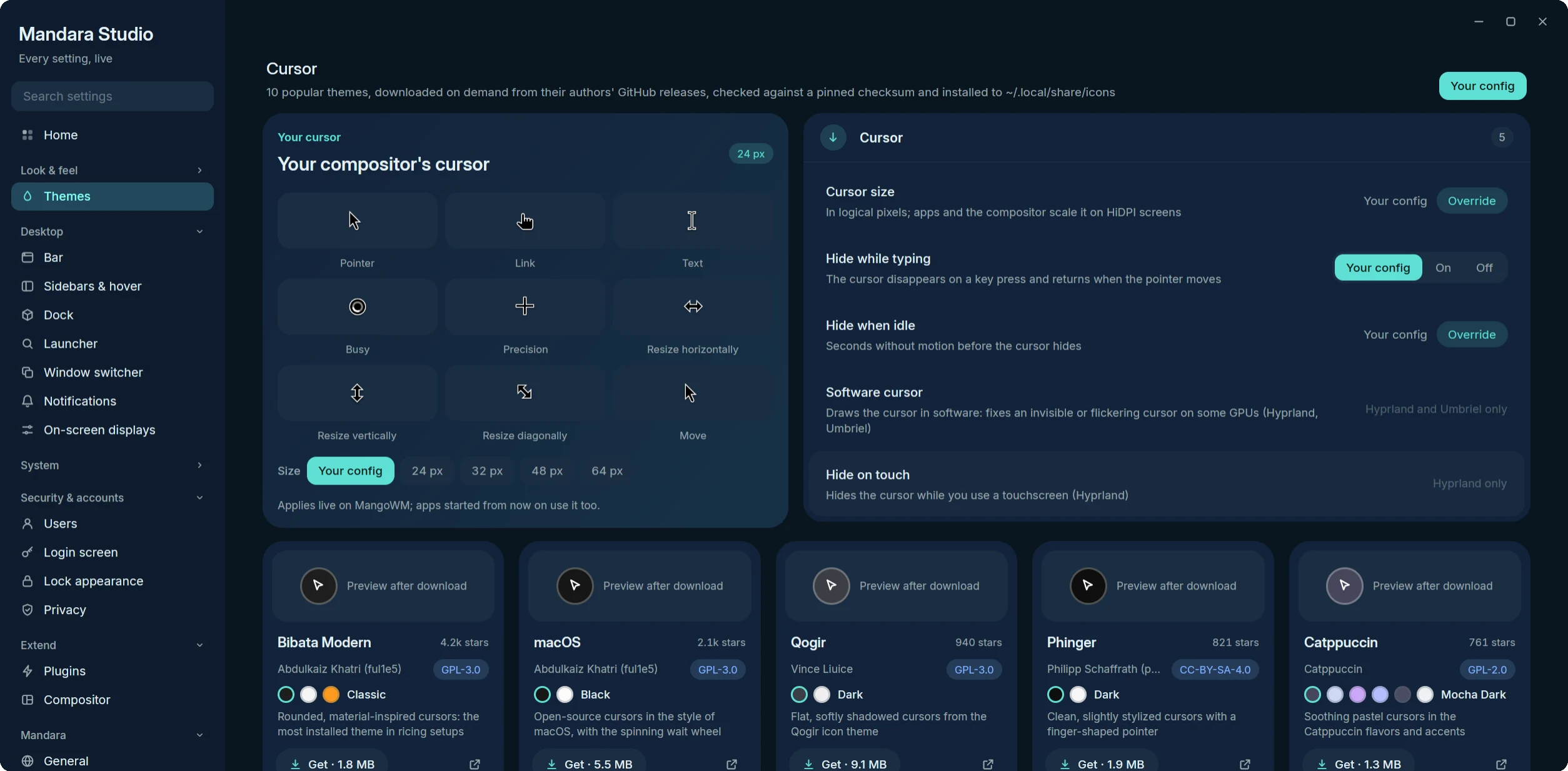
- **Your cursor** draws the applied theme from its own XCursor files —
pointer, link, text, busy, precision, the three resizes and move — at
the chosen size, with 24 / 32 / 48 / 64 px chips beside the size
slider. The rows next to it: *Hide while typing*, *Hide when idle*
(MangoWM, Niri, Hyprland, Umbriel, Sway, River), *Software cursor* (Hyprland and
Umbriel) and *Hide on touch* (Hyprland only); where a compositor lacks
one, the row says so in place of the control.
- **The gallery**: Bibata Modern, macOS, Qogir, Phinger, Catppuccin,
BreezeX, Vimix, Banana, Nordzy and Rosé Pine — the ten most-starred
themes that publish ready-built cursors on GitHub. Each card shows a
preview strip (or a swatch and "Preview after download"), author,
licence, GitHub stars, its variants as dots and one action that follows
its state: **Get · size** → **Installing n % · Cancel** (a progress
bar) → **Apply** → **Active**, plus **Remove** (press twice) for what
Mandara installed. A failed download shows its error on the card with
**Retry**. Tab moves between cards, Enter / Space runs the action,
← / → pick a variant (mirrored right-to-left) and Delete removes.
- **Installing** downloads the pinned release file from the theme's own
GitHub repository, checks its size and SHA-256, unpacks it with
pure-Rust readers (gzip, xz, bzip2, zip; paths leaving the folder are
refused, links pointing outside it dropped) and moves only the theme
folder (`index.theme` + `cursors/`) to `~/.local/share/icons/