mandara
Mandara Login — the login screen
Mandara Login is a greetd greeter written in pure Rust on GPUI: a full-screen, spring-animated login screen with AV1 video backgrounds decoded in pure Rust (no ffmpeg, GStreamer or C libraries), a Ken Burns slideshow or a generated OKLCH aurora when there are no videos, and a complete visual editor in Mandara Studio.
mandara greeter                  # the real greeter (started by greetd)
mandara greeter --demo           # preview on your running session (safe)
mandara greeter list             # the active login screen and every choice
mandara greeter use [NAME]       # switch the login screen (default: Mandara Login)
mandara greeter restore latest   # undo the last switch (sudo)
mandara greeter install          # register it as the login manager (sudo)
mandara greeter apply-config     # install your Studio draft system-wide (sudo)
mandara greeter uninstall        # restore the previous setup (sudo)
Try it without logging out
mandara greeter --demo
The demo opens as an overlay on your current session. Nothing is real:
- greetd is never contacted, the password is not checked against the
system (any non-empty password “works”; type
wrongto see the failure animation), no session is started; - Sleep / Restart / Shut Down are disabled (they never call logind);
- Esc Esc or the Exit demo button closes it; a “successful login” plays the zoom-and-dissolve transition and closes it.
Options: --lang ar, --theme mandara-obsidian, --background
aurora|stills|video|solid, --look
mandara|midnight-card|material-you|ghostline|chrome-halo|meridian (starts
from that look, as Studio’s Looks tab would), --scheme light|dark. The demo reads your Studio draft
(~/.config/mandara/greeter.toml), your own clips in
~/.local/share/mandara/login/videos/ and your wallpapers in
~/Pictures/Wallpapers.
Install it as your login manager
The installer does this for you: after installing Mandara it asks “Use
Mandara Login as your login screen?” (default yes; --yes accepts),
installs greetd and cage with your distribution’s package manager if
they’re missing (not with --no-deps) and runs
sudo mandara greeter use mandara --apply. --no-greeter skips the step,
--dry-run only prints the plan. On upgrades it refreshes the installed
greeter binary when it’s out of date. You can switch back any time with
Studio → Login screen → Login manager or sudo mandara greeter restore
latest.
Switch login screens: greeter list / use / restore
mandara greeter list # what's active, what's installed
mandara greeter use tuigreet --dry-run # print the plan only
sudo mandara greeter use tuigreet # write files (backed up) only
sudo mandara greeter use sddm --apply # …and switch display-manager.service
sudo mandara greeter restore latest # undo the last switch (--apply: units too)
Choices: Mandara Login (mandara, the default and recommended one) and
the greetd greeters tuigreet, regreet, gtkgreet, nwg-hello,
qtgreet and agreety, or the display managers sddm, plasmalogin
(Plasma Login Manager), gdm, lightdm, ly and lxdm.
Detection reads display-manager.service under /etc/systemd/system (which
display manager is enabled) and, for greetd, the [default_session] command
in /etc/greetd/config.toml (which greeter it runs, looking through cage -s
-- and similar wrappers). A choice is available when its pieces are
installed: greetd (unit or binary) plus the greeter binary and cage for the
greetd greeters that run in it; the systemd unit for display managers.
Missing pieces are named with their package for your distribution.
use always prints its plan first, e.g.:
Login screen — switch plan

  Now:    SDDM
  Target: Mandara Login (greetd greeter)

  Files (each one backed up first to /var/lib/mandara-greeter-backups/<timestamp>/):
    install  /usr/local/lib/mandara/mandara-greeter (copy of ~/.local/bin/mandara), media folders, state dir
    update   /etc/greetd/config.toml
        - command = "agreety --cmd /bin/sh"
        + command = "cage -s -m last -- /usr/local/lib/mandara/mandara-greeter greeter"
        (every other line is kept; user = "greeter")

  Services (run with --apply; nothing is started or stopped):
    systemctl disable sddm.service
    systemctl enable greetd.service

  Takes effect at the next boot (or the next time the login screen starts); the running session is not touched.
  Undo: sudo mandara greeter restore latest
- greetd greeters: only the
commandline of[default_session]changes — comments,user(greeter,_greetd, …),[terminal]and[initial_session]stay exactly as they were. The rewrite is checked (it must parse and differ only in that key) and a config that doesn’t parse is never touched. Mandara Login runs incagelikeinstalldoes (--compositor niri|hyprlandfor the others) and its runtime files are put in place too. - Display managers: the current one is disabled and the chosen one
enabled (
systemctl disable/enable, never--now). - It refuses without root, validates first (binary installed, unit present,
config parses), keeps a timestamped backup with a
manifest.tomlper switch in/var/lib/mandara-greeter-backups(only root can change it, unlike the folder the login screen’s user owns), and rolls back files and units if a step fails. restore latest(or a backup id) puts the backed-up files back, removes files the switch created, and with--applymovesdisplay-manager.serviceback if the switch had moved it. It runs only the service commands that switch could have written, for its own units. Backups made by older releases in/var/lib/mandara-greeter/backupsstill restore when root owns them and nobody else can write them.MANDARA_GREETER_DRY_RUN=1turnsuseandrestore(and Studio’s switch) into plan-only runs.
Changes take effect the next time the login screen starts — normally the next boot. Your running session is never stopped.
Install it by hand: greeter install
Requirements: greetd and a minimal kiosk compositor — cage is
recommended (Niri and Hyprland work too).
# Arch: sudo pacman -S greetd cage     Fedora: sudo dnf install greetd cage
# Debian/Ubuntu: sudo apt install greetd cage

mandara greeter install                 # 1. read the plan (changes nothing)
sudo mandara greeter install            # 2. install files, keep backups
sudo mandara greeter install --apply    # 3. …and switch display managers
What install does (it prints all of this first, refuses without root, and
never runs on its own):
- copies the running
mandarabinary to/usr/local/lib/mandara/mandara-greeter(the greeter user can’t run binaries from your home directory); - creates
/usr/share/mandara/login/{videos,backgrounds}for clips and images; - creates
/var/lib/mandara-greeter(owned by the greeter user) to remember the last user and their session; - writes
/etc/mandara/greeter.tomlwith defaults if it doesn’t exist; -
backs up
/etc/greetd/config.tomltoconfig.toml.mandara-backupand writes a new one (keeping your[terminal]and[initial_session]):[default_session] command = "cage -s -m last -- /usr/local/lib/mandara/mandara-greeter greeter" user = "greeter" -
detects the enabled display manager (
display-manager.service→ sddm, plasmalogin, gdm, lightdm, ly, …) and prints the switch commands; with--applyit runs them:systemctl disable sddm.service systemctl enable greetd.service
Services are never stopped or started — your current session keeps running and Mandara Login appears at the next boot.
Other kiosk compositors: sudo mandara greeter install --compositor niri
(writes /etc/mandara/greeter-niri.kdl and runs niri -c …) or
--compositor hyprland (writes /etc/mandara/greeter-hyprland.conf, or
/etc/mandara/greeter-hyprland.lua when the installed Hyprland is 0.57 or
newer — that version reads only Lua configs).
Uninstall
sudo mandara greeter uninstall           # restore the greetd config, remove the binary
sudo mandara greeter uninstall --apply   # …and re-enable the previous display manager
The previous display manager is recorded at install time in
/var/lib/mandara-greeter/previous-dm. Without it, re-enable yours by hand,
e.g. sudo systemctl disable greetd && sudo systemctl enable sddm.
FreeBSD
Mandara Login runs on FreeBSD under greetd and cage like anywhere else;
only the plumbing differs:
-
greetd isn’t packaged for FreeBSD yet (a port is under review), and upstream greetd builds only on Linux. Build its FreeBSD branch (it adds FreeBSD’s VTs, an rc script and a PAM sample). Install the tools as root:
pkg install git rust cage seatdBuild it as your ordinary user, never as root (the build runs code from greetd’s dependencies):
git clone -b feature/freebsd-support https://github.com/adamretter/greetd
cd greetd && cargo build --release
Then, from the same
greetdfolder, install it as root. The branch’s sample config runs greetd on VT 1, where FreeBSD already runs a login prompt, so the copy is set to VT 8 (/dev/ttyv8):install -m 755 target/release/greetd target/release/agreety /usr/local/bin/ install -m 555 greetd.rc /usr/local/etc/rc.d/greetd mkdir -p /usr/local/etc/greetd sed 's/^vt = 1$/vt = 8/' config.toml > /usr/local/etc/greetd/config.toml grep '^vt = 8$' /usr/local/etc/greetd/config.toml cp greetd.pam.freebsd.sample /usr/local/etc/pam.d/greetd pw useradd greeter -d /nonexistent -s /usr/sbin/nologin -c "greetd greeter" pw groupmod video -m greeter sysrc seatd_enable=YES && service seatd startThen
sudo mandara greeter use mandara --apply(or Studio → Login screen → Login manager) points greetd at Mandara Login. - Config:
/usr/local/etc/greetd/config.toml(greetd’s FreeBSD build reads it before/etc/greetd/config.toml). A config Mandara writes from scratch uses VT 8 (/dev/ttyv8, past the eight gettys of/etc/ttys). - Switching uses rc.conf instead of systemd: the active login screen is
the one with
<name>_enable="YES"(greetd,sddm,gdm,lightdm…, rc scripts in/usr/local/etc/rc.dand/etc/rc.d), and--applyrunssysrc -s sddm sddm_enable=NOandsysrc -s greetd greetd_enable=YES. With-s, sysrc also edits a service’s own/etc/rc.conf.d/<name>or/usr/local/etc/rc.conf.d/<name>, which rc reads after rc.conf, so the setting that counts is the one changed.greeter restoreputs back the value each setting had, in the file it was in, and removes one that wasn’t set anywhere. Nothing is started or stopped. -
Power buttons: Sleep, Restart and Shut Down on the login screen ask ConsoleKit2, which
mandara installinstalls (D-Bus starts it when asked). The login screen’s user (greetd’s[default_session] user, usuallygreeter) has no ConsoleKit2 session, so ConsoleKit2 refuses it by default.mandara installadds one polkit rule for it, in a file of Mandara’s own:/usr/local/etc/polkit-1/rules.d/50-mandara-greeter.rules. The rule lets that user, and no one else, suspend, restart and power off through ConsoleKit2 (org.freedesktop.consolekit.system.suspend,.restartand.stop) and allows nothing more: while another user is logged in, those still need an administrator, and the user gets no hibernation, no pkexec and no access to the disks. By hand, or to look first:mandara greeter power-rule # the plan (changes nothing) sudo mandara greeter power-rule --apply # write the rule (backed up first) sudo mandara greeter power-rule --remove # delete Mandara's rule againThe rule takes effect right away; polkit notices new rules by itself. A file at that path that isn’t Mandara’s is never replaced. The first press after boot can take about four seconds: D-Bus starts ConsoleKit2 for it, and ConsoleKit2 leaves that first call unanswered while polkit starts, so the login screen asks a second time. Mandara 0.24 and 0.25 put the login screen’s user in the
operatorgroup instead, which can also read the raw disk devices (/dev/ada0,/dev/nda0,/dev/da0…), so a login screen that was broken into could read an unencrypted disk’s data, password hashes included. The firstmandara installthat writes the rule takes the user out ofoperatoragain (pw groupmod operator -d greeter) and says so. It does this only for greetd’s login-screen user, only whenoperatorisn’t its primary group, and only for an account that can’t log in (anologinorfalseshell). For anyone else it prints the command instead, and later runs never touchoperator.greeter restoreremoves the rule again but doesn’t put the user back inoperator. Without ConsoleKit2 the buttons fall back to runningshutdownandacpiconf -s 3directly, which FreeBSD allows only to root andoperator. Mandara doesn’t add anyone there, so the login screen then shows what went wrong and points to this section. - PAM: OpenPAM looks for greetd’s policy in
/etc/pam.d/greetd, then in thegreetdlines of/etc/pam.conf, then in ports’/usr/local/etc/pam.d/greetd, and uses the first one it finds (pam.conf(5)).keyring-unlockcopies greetd’s file from/usr/local/etc/pam.dinto/etc/pam.dand adds its lines there (modules from/usr/liband/usr/local/lib:gnome-keyring,plasma6-kwallet-pam). FreeBSD 14’s PAM rejects the whole file over Linux’s-authprefix (15’s accepts it), so on both the lines are written without it, and only for modules that are installed. Without the prefix a module that goes missing fails every greetd login, so runsudo mandara greeter keyring-unlock --removebefore uninstallinggnome-keyringorplasma6-kwallet-pam(the plan warns about it). greetd’s sample file checks the password withauth sufficient pam_unix.so, which ends the stack before a keyring line can run: the plan says so, andauth required pam_unix.sofixes it. When/etc/pam.confholds greetd’s policy and/etc/pam.d/greetddoesn’t exist,keyring-unlockchanges nothing: a new/etc/pam.d/greetdwould replace that policy. Add the lines to/etc/pam.confyourself, each starting withgreetd(greetd auth optional pam_gnome_keyring.so), or move greetd’s lines into/etc/pam.d/greetdfirst. - Password prompts (polkit) need a ConsoleKit2 session for apps other
than the shell. First make sure ConsoleKit2 is installed
(
sudo pkg install consolekit2) and that/usr/local/lib/pam_ck_connector.soexists: OpenPAM fails the whole login when a PAM line names a module that isn’t there, even anoptionalone. Then add the line to the greetd policy OpenPAM uses, the first of these that has one:/etc/pam.d/greetd, if the file exists (keyring-unlockcreates it): addsession optional pam_ck_connector.so;/etc/pam.conf, ifgrep '^[[:space:]]*greetd[[:space:]]' /etc/pam.confprints lines: addgreetd session optional pam_ck_connector.sothere, with thegreetdservice name in front;- otherwise
/usr/local/etc/pam.d/greetd: addsession optional pam_ck_connector.so.
Before you uninstall
consolekit2, remove that line from each of these files that has it (grep -n pam_ck_connector /etc/pam.d/greetd /etc/pam.conf /usr/local/etc/pam.d/greetdlists them), and never restore a PAM backup that still contains it. Without a ConsoleKit2 session, Mandara’s agent still answers everything the shell asks (the Updates panel, the admin helper).
Unlock your keyrings at login: greeter keyring-unlock
GNOME Keyring and KWallet can open with the password you type at the login
screen, so apps find their saved secrets without a second prompt. Neither
keyring accepts a password over D-Bus; this works through their PAM modules
(pam_gnome_keyring.so, pam_kwallet5.so — KWallet 6 keeps that name),
which Mandara adds to greetd’s PAM service file:
mandara greeter keyring-unlock                 # status + the plan (changes nothing)
sudo mandara greeter keyring-unlock --apply    # add the lines (backed up first)
sudo mandara greeter keyring-unlock --remove   # take Mandara's lines out again
- Only installed modules are added: the module directories of every
distribution are searched (
/usr/lib/security,/usr/lib64/security,/lib/x86_64-linux-gnu/security,/usr/lib/aarch64-linux-gnu/security, …). Packages: Archgnome-keyring/kwallet-pam; Debian and Ubuntulibpam-gnome-keyring/libpam-kwallet5; Fedoragnome-keyring-pam/pam-kwallet; openSUSEgnome-keyring-pam/pam_kwallet6. - A module the stack already runs — wired by the distribution (openSUSE’s
pam-configputs gnome-keyring incommon-auth) or by hand — is left alone: includes and substacks are followed. -
The
authlines go right after the stack that checks your password (the lastinclude/substack/@includethat runspam_unixor similar — on Fedora beforeauth include postlogin, like GDM’s file), thesessionlines after the last session line. They areoptionaland start with-, so a login never fails because of them, and each group is wrapped in# mandara-keyring begin/# mandara-keyring endmarkers:# mandara-keyring begin — added by `mandara greeter keyring-unlock`; --remove takes it out -auth optional pam_gnome_keyring.so -auth optional pam_kwallet5.so force_run # mandara-keyring endpam_kwallet5.sogetsforce_run(andauto_startfor the session): greetd setsXDG_SESSION_TYPEonly after authentication, so the module would otherwise skip the login as “not graphical”. - The file is
/etc/pam.d/greetd(or the service named by greetd’s[general] service). When only the distribution’s/usr/lib/pam.d/greetdexists (openSUSE), a copy goes to/etc/pam.d, which takes precedence, and--removedeletes it again. - It refuses without root, backs the file up under
/var/lib/mandara-greeter-backups/<timestamp>/(sogreeter restore latestundoes it too), checks that nothing outside its markers changes, verifies the write and rolls back on any error. Running it twice changes nothing; a module installed later is added on the next run.MANDARA_GREETER_DRY_RUN=1turns it into a plan-only run. sudo mandara greeter install --applysets this up by default (--no-keyring-unlockskips it), andmandara installoffers it after switching to Mandara Login.
It only works when you log in with your password through Mandara Login:
autologin ([initial_session]) has no password to hand over, and each
keyring’s password must be the same as your login password (change a
keyring’s password in Seahorse or KWalletManager to match). Studio shows
the state under General → Keyrings & passwords → Unlock at login.
KeePassXC has no PAM module; Mandara has its own unlock dialog for it instead (see commands.md).
Design it in Mandara Studio
mandara studio "login screen" (or Studio → Login screen) edits every
setting with a live preview — the real greeter view, rendering your draft.
The first tab, Looks, applies a whole design in one click: Mandara (the default: everything floats on the backdrop, with Mandara’s emblem above the keyboard pill), Midnight card (a regular-weight clock with the date under it, and one outlined card holding a frameless user icon, an inset field with an accent border and a sign-in button beside it, and a full-width session field; outlined power buttons, a logo and a colour scheme switcher; the Night Citrine theme) or Material You (Material 3 Expressive: colours made from the picture behind the screen, a big stacked clock whose hours take a tone of the accent and whose weight grows from thin as the screen wakes, and one tonal card with your picture in Material’s scalloped twelve-sided shape, a filled password field with a round button beside it that squares off while held, and the session as a chip with a menu; other people as chips, tonal power buttons and the emblem in the accent colour). The scalloped avatar turns a little with each key and morphs into a circle while the password is checked; reduced motion holds it still.
Three looks put the sign-in somewhere other than the middle:
- Ghostline, on the left: graphite and ice-white hairlines with one cold cyan accent and a sparing pink-magenta one. A bracketed wireframe panel holds a ruled header with the computer’s name, live readouts (the keyboard layout, the uptime and the time zone, read from the system and left out when they can’t be), your picture and name, and a terminal password line: a prompt, one segmented cell per character and a block caret, with the sign-in key at its end. On the right, thin monospace digits stack beside a ruler of the day whose marker shows the time, and a measured frame (corner brackets, a faint grid, tick rulers and a slow scan line) sits over the backdrop.
- Chrome Halo, on the right: deep ink and holographic light, warm. A light clock and the date sit inside a luminous ring of iridescent arcs in the theme’s three accents; the arcs turn slowly, step with each key, brighten while you type and flash coral on a wrong password, and a small satellite traces an outer orbit. The sign-in is a machined double-bezel module (an outer tray with a hairline rim around an inner core) with a recessed field and a pill button whose arrow sits in a circle of its own.
- Meridian: no card and no boxes. One calm field (dawn ivory to pale stone, or deep ink with the light colours off) crossed by a single hairline at the golden height, which draws itself in from the centre and brightens around the caret. Your name and the characters you type are set on that line from the golden point like type; the session and the keyboard layout are small words at its start, power and the date at its end (under the line on screens narrower than 3:2). Enormous hairline numerals sit behind everything at a whisper of contrast, cropped by the screen’s edges. Click your name to move to the next person.
Ghostline and Chrome Halo keep their sides in right-to-left languages (the side is the design); everything inside them mirrors. Meridian mirrors whole: it starts from the golden point on the right. Ghostline’s and Chrome Halo’s cards and fields are dark by design, so with the light colours on they keep their dark colours and light text. Each piece is a setting of its own, so it mixes with the others: the clock faces (Clock & date → Clock face), the card styles (Sign-in → Card style: wireframe, double bezel, on a line), the Terminal and Recessed fields, the pill sign-in button, the HUD, prism and horizon Overlays (Background), and Light colours (Theme & glass).
Who is listed, sessions, folders, language and accessibility stay as they are, and every part stays editable in the other tabs: Layout, Background, Clock & date, Sign-in (card, user, password field), Session, power & extras (logo, scheme switcher, language), Theme & glass, and Motion & accessibility.
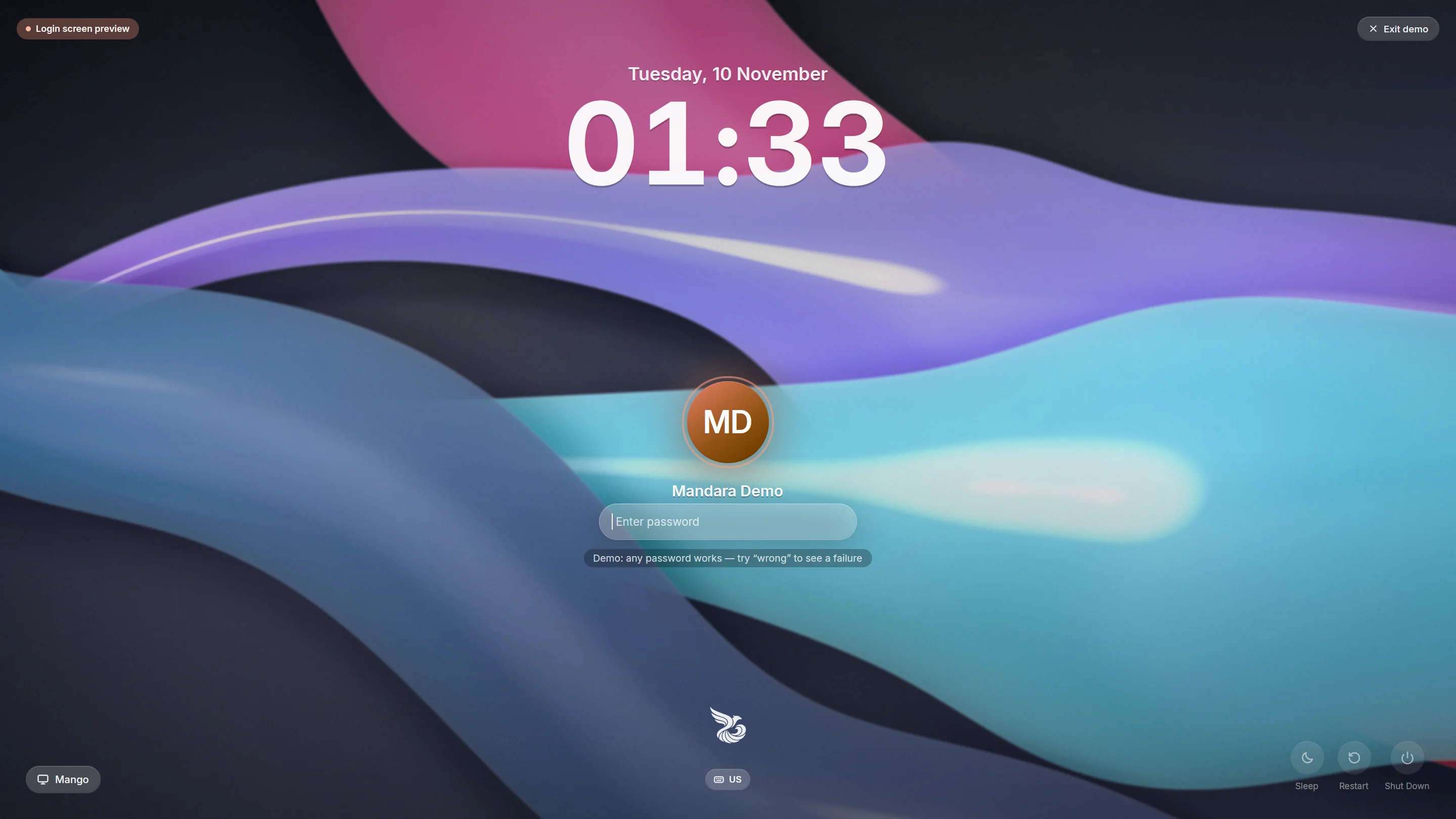 Mandara: everything floats on the backdrop |
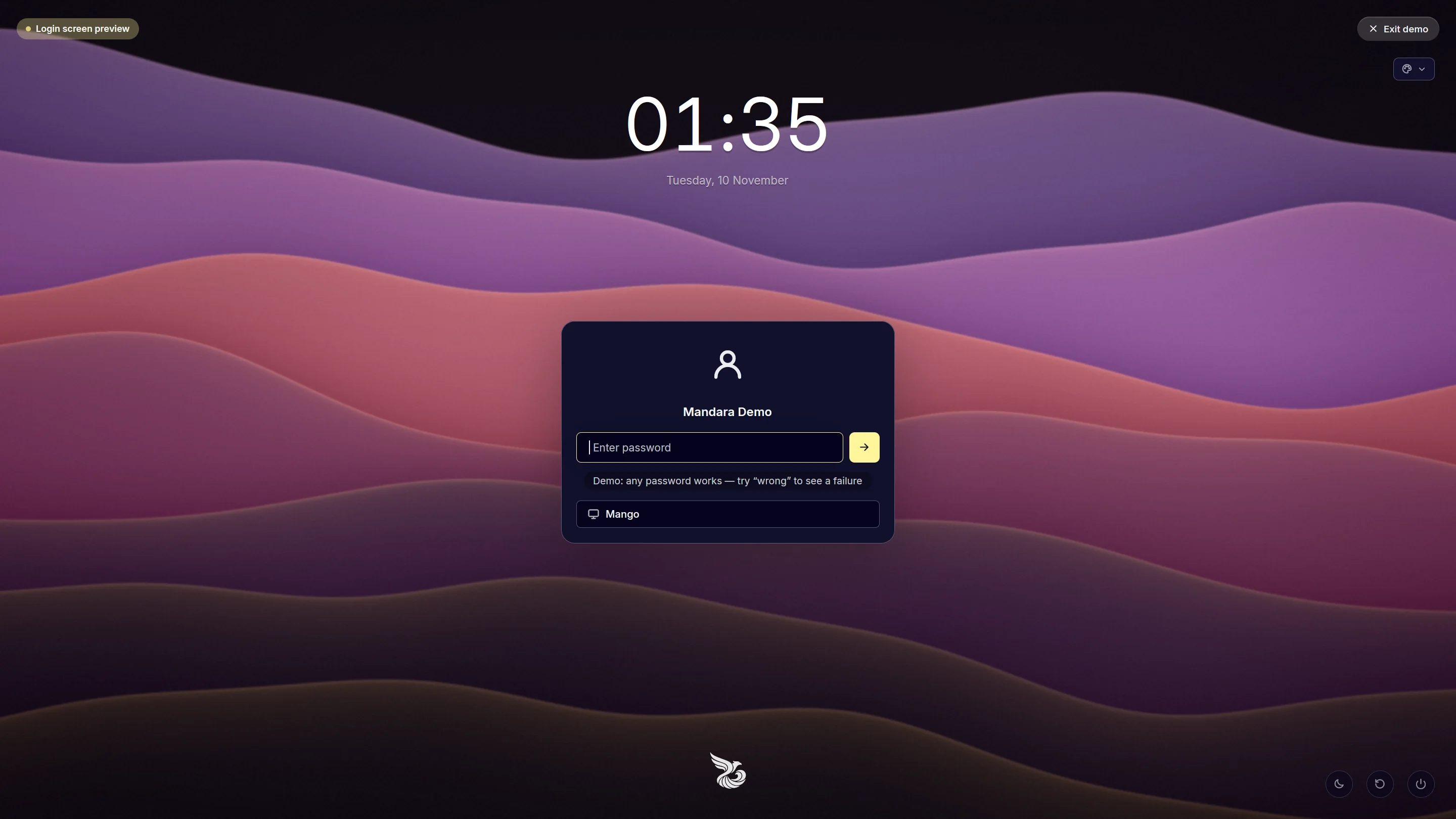 Midnight card: one outlined card in navy and citrine |
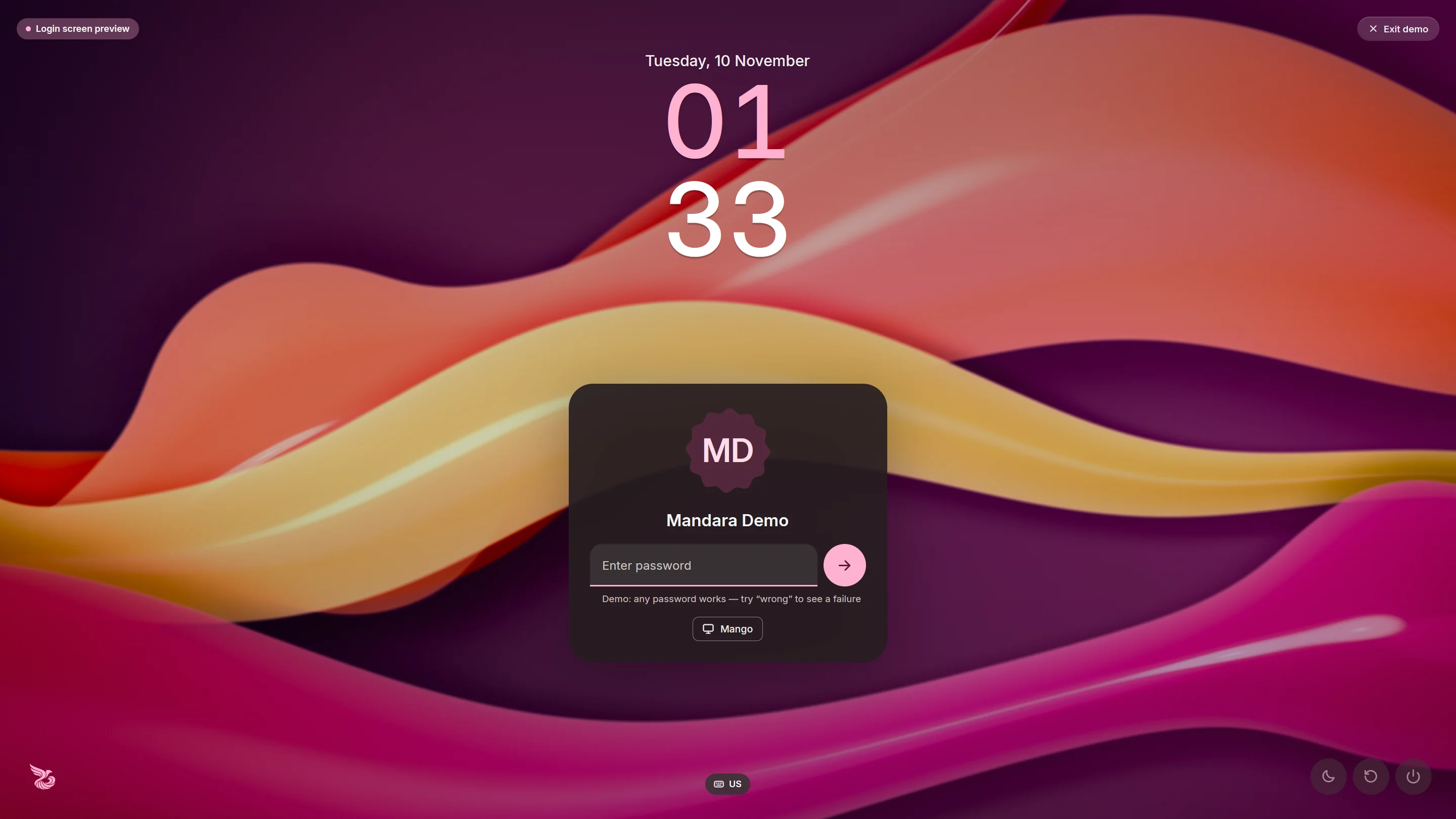 Material You: colours from the wallpaper, one tonal card |
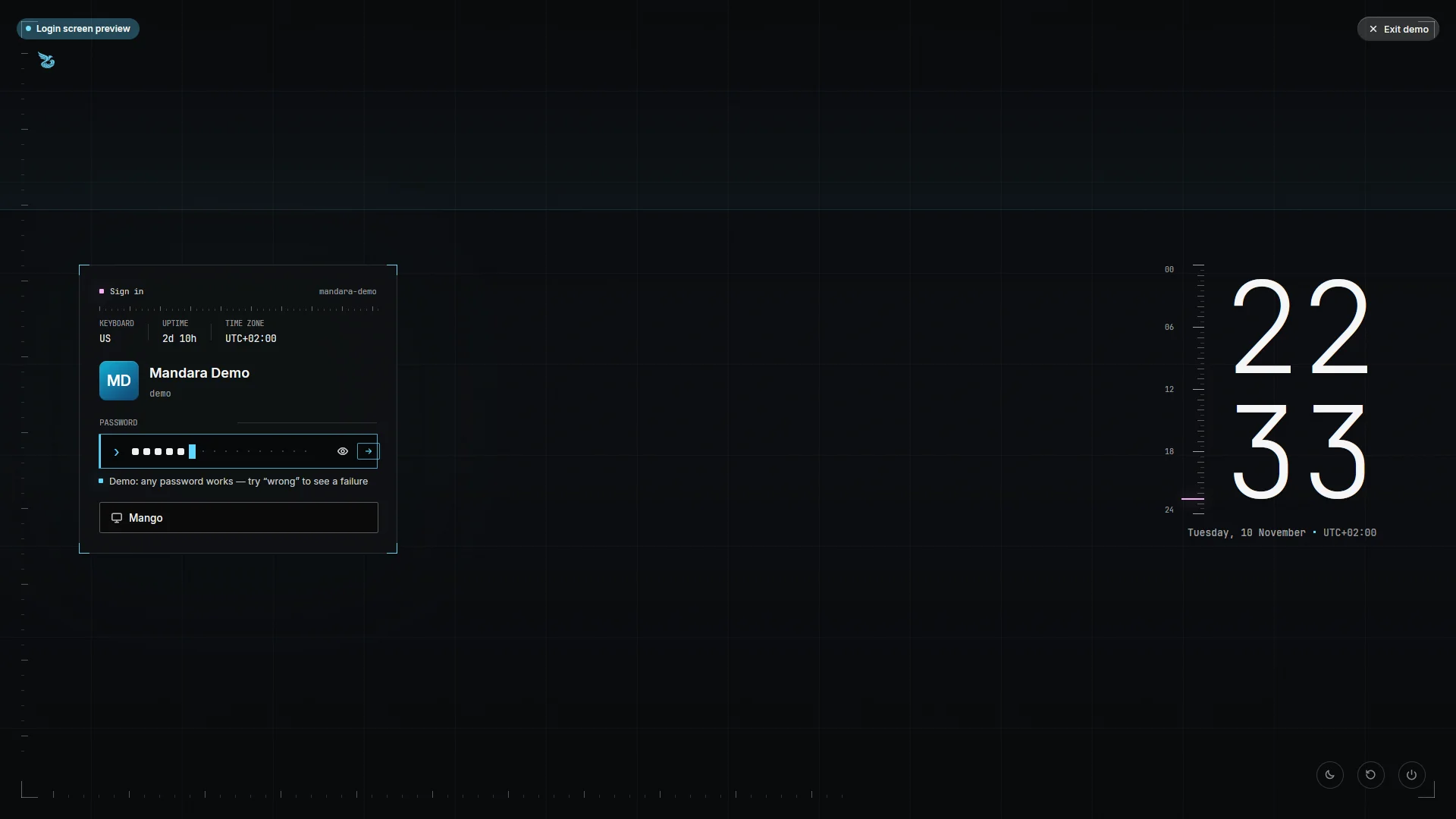 Ghostline: a wireframe panel on the left |
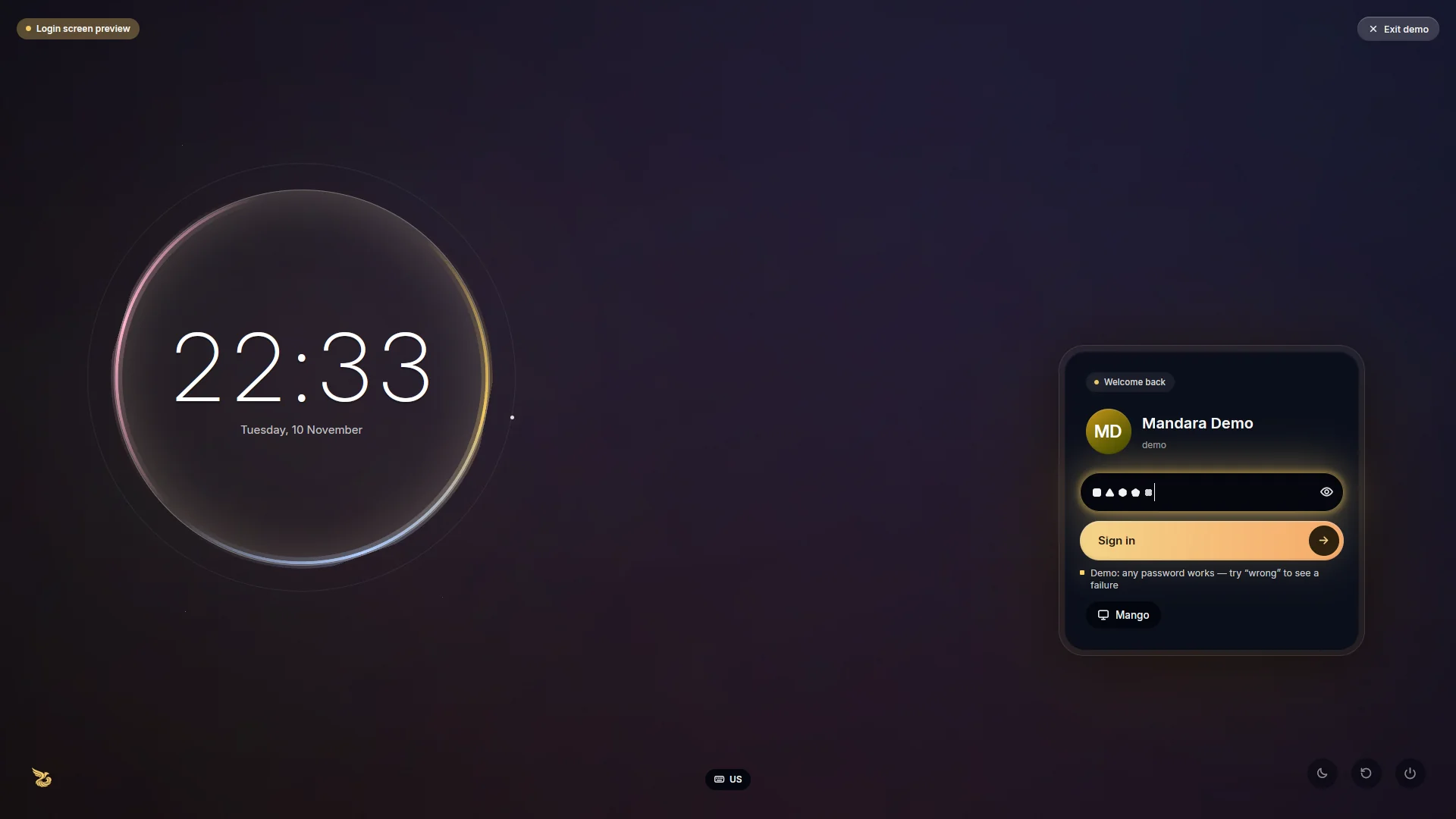 Chrome Halo: a ring of light, a machined module on the right |
 Meridian: one line, light or dark |
Dynamic colour (theme.from_wallpaper, Colours from the wallpaper in
Theme & glass) builds Material’s dark tonal scheme from the leading colour of
the still behind the login screen: the picked person’s shared wallpaper or
your slideshow. It is picked from a small copy while the still is decoded,
off the screen’s thread. Clips and the aurora have no picture to take it
from, so the theme preset is used with them.
The last tab, Login manager, shows the active login screen (name, icon,
kind) and every choice, with Mandara Login marked Recommended · default.
Use runs mandara greeter use <name> --dry-run and shows that plan in a
confirm card; Switch then runs pkexec <admin> greeter use <name> --apply
(no shell involved) and reports the result — the change shows the next time
you log in or restart. Choices that aren’t installed are disabled with what’s
missing and the package to install (e.g. “greetd isn’t installed — install it
first (package greetd)”). With MANDARA_GREETER_DRY_RUN=1 Studio’s switch is
a dry run.
- Drag elements on the preview. They snap to the nearest of nine anchors
(corners, edges, center) and keep their offset; guides show while you
drag. Click an element to edit its anchor, offset, scale and visibility;
+/−in the element list change the stacking order. - Groups: Login manager · Layout · Background · Clock & date · User & password · Session & power · Theme & glass · Motion · Accessibility.
- Preview buttons play the entrance, typing, a wrong password, the success transition, or the idle clock.
- Preview full screen runs
mandara greeter --demowith the draft. - Apply to login screen runs
pkexec <admin> greeter apply-config(validates the draft and installs it as/etc/mandara/greeter.toml; the previous file is kept as.bak).
<admin> is always a copy of Mandara that only root can change, never the
one in your home (which your account, or malware in it, could replace before
an administrator approves the prompt): a package’s mandara, the admin
helper /usr/local/lib/mandara/mandara-admin that mandara install puts in
place, or the login screen’s own /usr/local/lib/mandara/mandara-greeter.
Studio checks that root owns the file and every folder above it. Without
one yet, the first such action installs the helper from your binary (pkexec
install -D -o root -g root -m 0755 …, one more approval), and after that your
own copy never runs as root.
Public widgets
Studio → Login screen → Layout → Widgets adds passive widgets from the built-in gallery or copies one from the desktop. Position each copy with its anchor, offsets, scale and opacity; later desktop edits do not change it. Apply to login screen installs this draft through the existing administrator flow. Nothing is added during installation.
The same widget schema is used by the desktop, Mandara Login and the
native lock screen. This minimal greeter.toml example adds a word clock:
# Public login widgets
[[widgets.items]]
id = "welcome-word"
kind = "clock"
face = "word"

[widgets.items.place]
anchor = "top-left"
x = 0.04
y = 0.04
scale = 0.65
The optional [widgets.weather] table holds explicitly public latitude,
longitude and place values. Studio shows the chosen coordinates before
copying them; the preview does not fetch weather. Personal files, messages,
calendar events and account data are not available to these widgets.
Eligible kinds and lock-screen support.
Configuration reference
/etc/mandara/greeter.toml (real greeter) / ~/.config/mandara/greeter.toml
(draft, demo). Every key is optional. Sizes and offsets are pixels on a
1080-pixel-tall reference screen and scale with the output.
language = "auto"                # or en, ar, fa, ur, es, pt, fr, de, tr, ru, hi, mr, bn, te, id, sw, vi, zh, ja, ko

[background]
user_wallpaper = true            # the picked person's own wallpaper, when shared
mode = "auto"                    # auto | video | stills | aurora | solid
video = "auto"                   # auto | lite | off (decoding)
video_dirs = ["/usr/share/mandara/login/videos"]
image_dirs = ["/usr/share/mandara/login/backgrounds"]
shuffle = true
playlist = []                    # file names in order (optional)
clip_seconds = 30                # with several clips, each plays at least this long
crossfade_ms = 1400
still_seconds = 16
still_fade_ms = 2600
ken_burns = 0.12                 # zoom range of the slideshow
playback_rate = 1.0              # 0.5 = dreamy slow motion
dim = 0.08
vignette = 0.4
grain = 1.0
blur = 0.0                       # stills blurred; videos at reduced resolution
tint = ""                        # "#rrggbb"
tint_strength = 0.0
solid = ""                       # color for mode = "solid"
orbs = true                      # drifting light orbs
orb_intensity = 0.5
parallax = 14.0                  # pointer parallax depth (px)
overlay = "none"                 # none | hud (a measured frame) | prism (holographic light) | horizon (a calm field and a line; covers the backdrop)

[clock]
format_24h = true
seconds = false
font = ""                        # empty = display font (Alexandria)
size = 150.0
weight = 700
idle_weight = 0                  # weight of the big idle clock (0 = the same)
opacity = 0.95
roll_digits = true
stacked = false                  # hours over minutes
tint = false                     # hours in a tone of the accent
face = "digits"                  # digits | ruler (beside a ruler of the day) | halo (in a ring of light) | vast (enormous, behind everything)

[date]
format = ""                      # strftime; empty = the language's default
font = ""
size = 24.0
weight = 600
opacity = 0.9

[user]
list = "all"                     # all | last-user | manual
avatar_shape = "circle"          # circle | squircle | rounded | bare (no frame) | cookie (scalloped)
avatar_source = "auto"           # auto (AccountsService / ~/.face) | monogram | icon
avatar_size = 108.0
glow_ring = true                 # breathing accent ring
show_name = true
name_size = 20.0
hidden = []                      # login names never listed
switcher = "faces"               # faces | chips (the other people)

[password]
style = "glass"                  # glass | solid | inset | outline | underline | filled | terminal | recessed
submit = "inside"                # inside | beside | hidden (Enter signs in) | pill (a full-width pill under the field)
mask = "dots"                    # dots | shapes (a varied shape per character)
accent_border = false            # accent border while focused
text_size = 15.0
width = 340.0
height = 48.0
placeholder = ""
caps_hint = true
reveal_toggle = true
keystroke_ripple = true
glow = true

[session]
default = ""                     # e.g. "niri"; a user's last choice wins
x11 = true
style = "pill"                   # pill | field (full width) | chip (with a menu)

[power]
suspend = true
reboot = true
poweroff = true
labels = true
style = "soft"                   # soft | outlined | tonal
size = 44.0

[card]                           # user, password and session on one card
enabled = false
width = 460.0
padding = 22.0
radius = 22.0
fill = ""                        # #rrggbb, empty = the theme's surface
opacity = 1.0
border = 1.0
border_color = ""                # #rrggbb, empty = the theme's outline
back_button = true               # back to the user switcher
session_inside = true
style = "plain"                  # plain | hud (wireframe, live readouts) | bezel (double bezel) | horizon (no card: on a line)

[logo]                           # shown with the "logo" layout element
path = ""                        # PNG / SVG, empty = Mandara's emblem
size = 56.0
opacity = 0.9
accent = false                   # the emblem in a tone of the accent

[keyboard]
layout = ""                      # empty = detected

[banner]
text = ""                        # e.g. "Authorized use only"
size = 14.0

[theme]
preset = "montaza-twilight"      # `mandara themes`
accent = ""                      # "#rrggbb" override
glass = 0.18
rim = 0.6
roundness = 1.0
switcher = []                    # schemes the "themes" element offers (ids)
from_wallpaper = false           # colours from the picture behind (dynamic colour)
light = false                    # the theme's light colours: light controls with dark text (text on the backdrop follows the backdrop)

[motion]
entrance = true
stagger_ms = 70
entrance_spring = { stiffness = 120.0, damping = 17.0 }
pop_spring = { stiffness = 260.0, damping = 13.0 }
shake = true
shake_strength = 1.0
shake_spring = { stiffness = 1100.0, damping = 16.0 }
success_spring = { stiffness = 55.0, damping = 15.0 }
success_zoom = 0.10
idle_seconds = 30                # back to the big idle clock (0 = never)
start_idle = true
idle_spring = { stiffness = 140.0, damping = 22.0 }

[accessibility]
reduced_motion = false           # springs snap, nothing drifts or rolls
large_text = false
high_contrast = false

# Layout: one entry per element (clock, date, user, password, users,
# session, power, keyboard, banner, logo, themes — the colour scheme
# switcher).
# With the card on, the user element places the whole card.
[[layout]]
element = "clock"
anchor = "top"                   # top-left … bottom-right, center
x = 0.0
y = 108.0
scale = 1.0
visible = true
z = 1
Video backgrounds
Drop clips into /usr/share/mandara/login/videos/ (the greeter user can
only read system folders; the demo also reads
~/.local/share/mandara/login/videos/). Several clips play in order (or
shuffled) with crossfades; a single clip loops seamlessly.
Format: AV1 video in WebM / MKV (.webm, .mkv) or IVF (.ivf), 8- or
10-bit 4:2:0. Audio is ignored (strip it). H.264/HEVC/VP9 are not supported —
convert them:
ffmpeg -i in.mp4 -c:v libsvtav1 -crf 35 -preset 6 -an out.webm
# smaller / easier to decode: scale to 1440p or 1080p and cap the frame rate
ffmpeg -i in.mp4 -vf "scale=-2:1440,fps=30" -c:v libsvtav1 -crf 35 -preset 6 -an out.webm
Recommended: 1080p or 1440p at 24–30 fps, 10–60 s, seamless loops. 4K plays where the CPU allows; clips at least twice the screen size are converted at half resolution automatically.
How playback works: a decode thread (pure-Rust rav1d, the Rust port of
dav1d, built without assembly) feeds a conversion thread (BT.709 / BT.601 /
BT.2020, limited or full range → BGRA) through a small queue; the UI shows
the newest frame that is due and drops late ones, so it never waits on the
decoder. If decoding falls behind for a sustained period the clock pauses
instead of jumping, then it switches to lite decoding (CDEF and loop
restoration off, no film grain, half-resolution conversion above 1080p),
and if that still can’t keep up it falls back to the slideshow / aurora.
Measured on a Ryzen 9 9950X (16 cores), synthetic textured AV1 clips
(crates/mandara-media/examples/make_test_clip.rs), release-optimized decoder:
| clip | decode | decode + convert (pipelined) | in the greeter |
|---|---|---|---|
| 1080p | 83–97 fps (114 lite) | ~70–90 fps | 24/24 fps, 0 dropped, ~5–7 ms per frame |
| 2160p | 41 fps (all cores), 21 fps (4 threads), 10 fps (2 threads) | ~34–41 fps | — |
Real footage is heavier than the synthetic clips; on 4-core machines prefer 1080p/1440p. Measure your own clip:
cargo run --release -p mandara-media --example decode_bench -- clip.webm
Make a synthetic test clip (pure Rust, rav1e):
cargo run -p mandara-media --example make_test_clip -- test.webm 1920x1080 120 24
Developer note: rav1d’s debug assertions make it ~300× slower in an unoptimized-assertions (
dev) build (≈0.3 fps at 1080p), so video falls back to stills there. Release builds are unaffected. For fast video in dev builds add to the workspaceCargo.toml:[profile.dev.package.rav1d] debug-assertions = false overflow-checks = falseor build with
--config profile.dev.package.rav1d.debug-assertions=false
--config profile.dev.package.rav1d.overflow-checks=false
.
Each person’s own wallpaper
When someone is picked, the login screen shows their desktop wallpaper.
Their Mandara session shares a copy (at most 2560×1600, JPEG) in
/var/lib/mandara-login/wallpapers/<user>.jpg whenever the wallpaper
changes (Studio → Wallpaper → “Show on the login screen”). The folder is
sticky like /tmp: anyone can add their own file and nobody can change
someone else’s, and the login screen only shows a regular file owned by the
picked account, so nobody can put a picture under another person’s name.
greeter install creates the folder, and so does applying the login screen
settings in Studio (for installs from before it existed). People without a
shared wallpaper, and user_wallpaper = false, get the backdrop below. The
demo and Studio’s preview show your own current wallpaper.
Stills and the aurora
Without clips, images from /usr/share/mandara/login/backgrounds/ play as a
Ken Burns slideshow (slow zoom and pan with crossfades). With nothing at
all, a generated aurora — the theme’s hues at vivid OKLCH lightness,
drifting slowly — keeps the screen alive.
Keyboard
Enter submits · Esc clears (Esc Esc exits the demo) · Tab / Shift+Tab move between password, session picker and user switcher · arrows change the session or user · Ctrl+Backspace / Ctrl+U clear the field · the first key or pointer move wakes the idle clock (the key is also typed). Caps Lock shows a hint. Multi-step PAM conversations work: info and error messages appear under the field, follow-up prompts (OTP codes, “new password”) reuse it.
Troubleshooting
- Black screen / greetd falls back to a text prompt — check
journalctl -u greetd -b. Make surecageis installed and that/usr/local/lib/mandara/mandara-greeter greeterexists and is executable. - “GREETD_SOCK is not set” —
mandara greeterwithout--demoonly runs under greetd. - No avatar — the greeter user can’t read
~/.face; set a picture in your desktop’s user settings (AccountsService,/var/lib/AccountsService/icons/<user>). - Videos don’t play — only AV1 is supported; check the log for the clip’s
error and convert it as above. Clips in your home folder aren’t readable
by the greeter user: copy them to
/usr/share/mandara/login/videos/. - Wrong language / layout — set
languageand[keyboard] layoutin/etc/mandara/greeter.toml. Translations use the selected version’s external.mlangpack in/usr/local/share/mandara/locales/<version>/(or the package’s system data directory). Installing or applying the login configuration prepares that pack. Login wording shares the shell’s pack under separategreeter:keys; neither catalog is embedded in the executable. The login process never downloads languages and falls back to English if its pack is missing. - Go back to your old display manager —
sudo mandara greeter uninstall --apply.