mandara
Everything else
The rest of what’s built in.
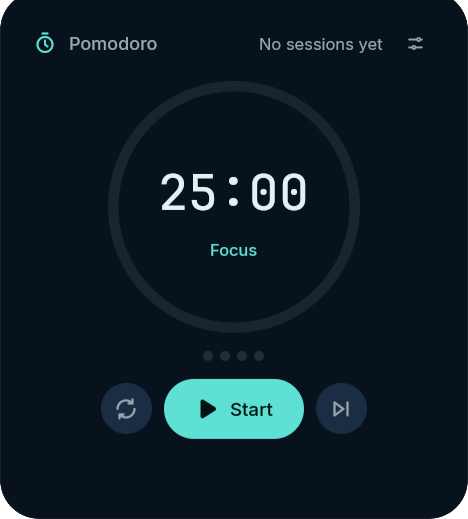 Focus timer: Pomodoro sessions with a countdown ring. |
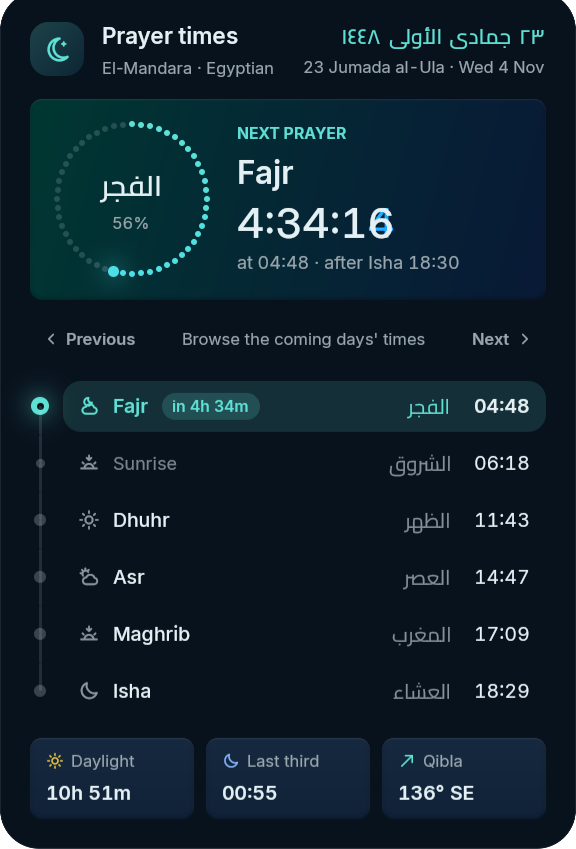 Prayer times (opt-in): next-prayer countdown ring, day timeline, Hijri date and Qibla. |
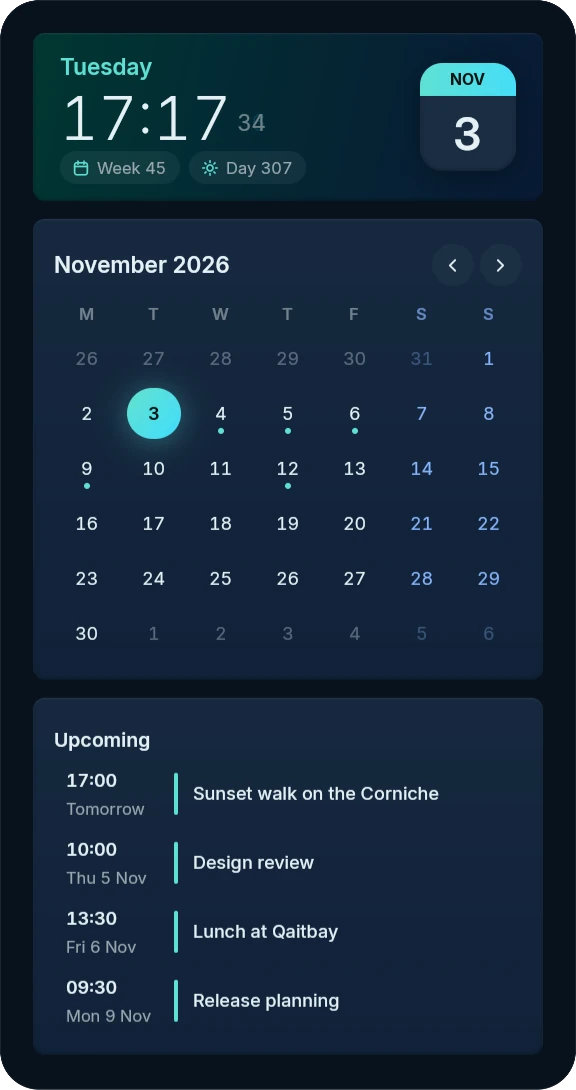 Clock and calendar with ICS feeds, Hijri dates and an agenda |
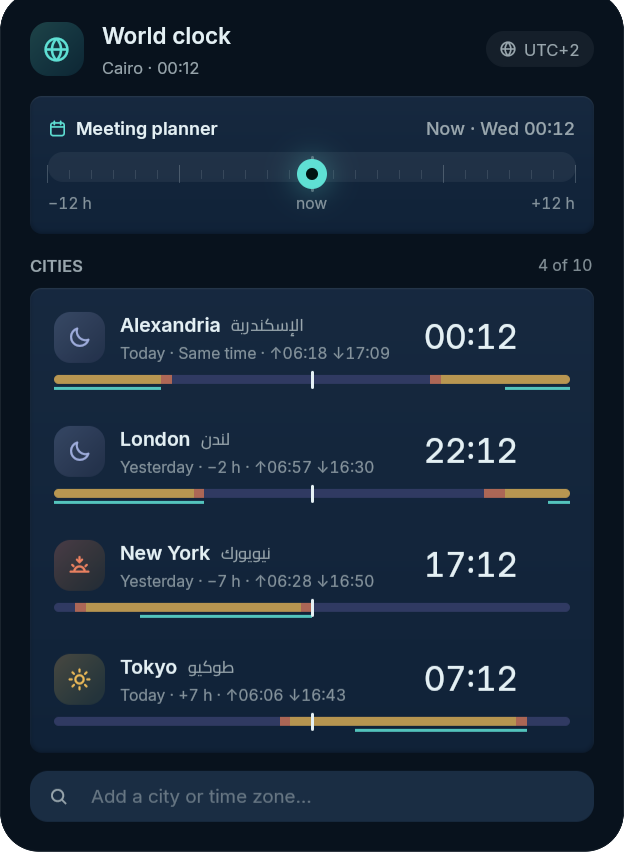 World clock and meeting planner |
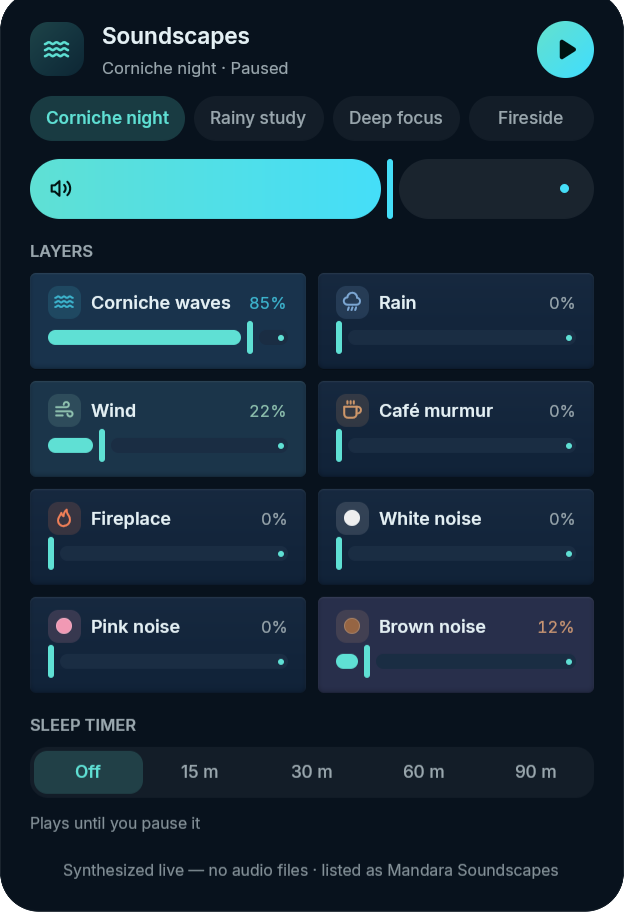 Soundscapes: mix ambient sounds for focus |
- Top or bottom: every bar style (see Shape it your way) can sit at the top or bottom of the screen; at the bottom, panels spring upward.
- Panels that morph out of their pill, with clean concentric corners, a 1px specular rim and anti-banding grain.
- Liquid tag pills: every active tag or workspace gets its own indicator
that stretches as it travels. Neighbouring tags viewed together on MangoWM
(right-click,
toggleview) melt into one shape with a soft waist (a smooth minimum of their distance fields), and one Oklab gradient runs across them all (River’s tags work the same way). Next to them, MangoWM shows the tag’s layout, Umbriel the active workspace’s own layout, Sway its container layout and River its layout generator (click to cycle), plus a badge for a non-default keymode, keybind submap or binding mode. - Sidebar with Overview and Notifications tabs, quick settings, weather (animated sky), media, Pomodoro, to-do, notes, sound and more. It opens on hover or Super+B and sits left or right (the power dock takes the opposite edge). Three modes: Float over your windows (the smoothest: opening it never re-tiles them), Push windows aside while it’s open and give the space back when it closes, or Pinned open with its space reserved.
- Clipboard history with pins that survive clears, size and image
limits, per-app exclusions (password managers), clear on lock / after N
hours, and keep-copies-from-closed-apps.
- Sorted by kind as you copy. Each copy is recognised once, off the
UI thread, and the kind is saved with it: plain text, links (shown by
their site), Markdown (rendered), code with a best-guess language
(Rust, Python, JavaScript, TypeScript, Go, C, C++, Java, Kotlin, C#,
PHP, Ruby, Lua, Nix, shell, PowerShell, Dockerfile, SQL, JSON, YAML,
TOML, HTML, XML, diffs), CSS rules and declarations, colour values
(
#hex,rgb(),hsl(),hwb(),lab(),lch(),oklab(),oklch()and Hyprland’srgba(rrggbbaa), drawn as a swatch), images (screenshots told apart by their size, the tool that made them or the app you copied from) and files copied in a file manager (icon, name and folder; pasting them back works in file managers too). Short all-digit hex like#123stays text, since it’s usually an issue number. - Chips, search and collections. Chips filter by kind, pins or a
collection; the search box matches text, kinds, languages, sites, apps
and collection names. Collections are your own groups: the folder
button on an entry adds it to one (or makes a new one), a right-click
on a collection’s chip renames it, and the pencil and trash next to its
title rename or delete it (its entries stay in the history). Collected
entries survive clears like pinned ones; collections are saved in
~/.cache/mandara/clipboard/collections.json, even when the history itself is kept in memory only. - Settings (Studio → Plugins → Clipboard): Filter by kind (the chips), Preview lines (lines of code, CSS and Markdown a row shows, 0 = one line) and Entries in collections (how many are kept).
- Alt+V opens it (as does Super+Shift+V). Arrow Up and Down move through the list, turning the page when they reach its end; Enter copies the selected entry (or pastes it, where the panel is set to paste), and the wheel turns pages. Fast wheel movements can turn several pages at once; partial movement carries over to the next event.
- Sorted by kind as you copy. Each copy is recognised once, off the
UI thread, and the kind is saved with it: plain text, links (shown by
their site), Markdown (rendered), code with a best-guess language
(Rust, Python, JavaScript, TypeScript, Go, C, C++, Java, Kotlin, C#,
PHP, Ruby, Lua, Nix, shell, PowerShell, Dockerfile, SQL, JSON, YAML,
TOML, HTML, XML, diffs), CSS rules and declarations, colour values
(
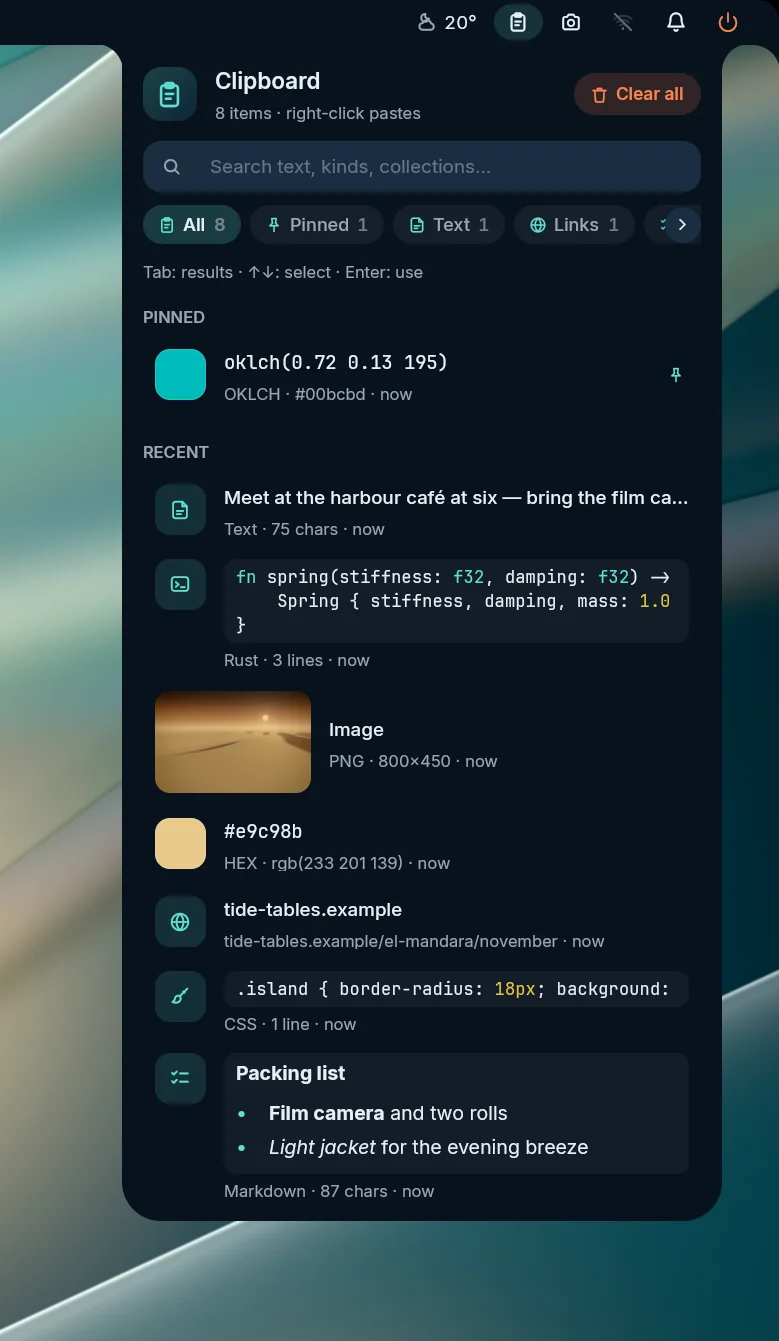 Clipboard: every kind shown the way it looks best |
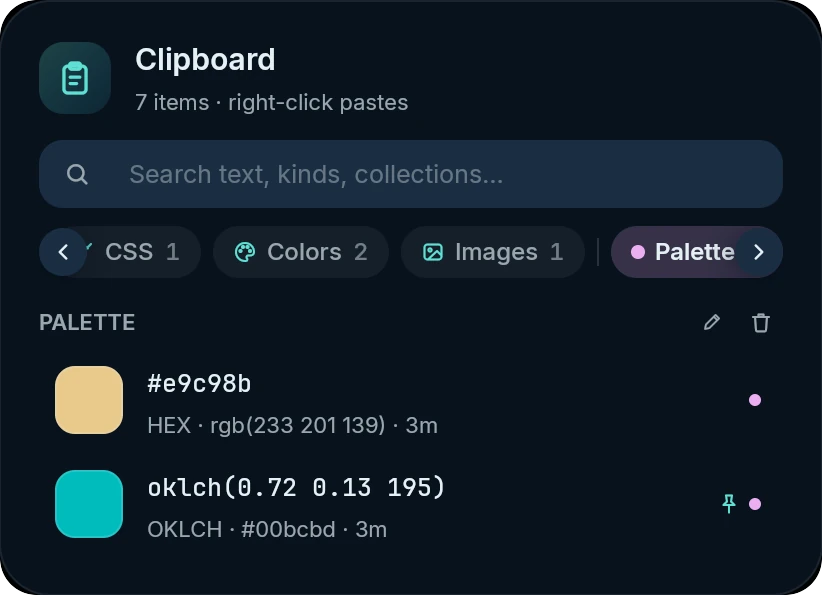 Collections: a palette kept together, with rename and delete |
- On-screen displays for volume, microphone, output device, brightness,
keyboard backlight, layout, Caps / Num / Scroll Lock, power mode, do not
disturb, night light, now playing, privacy and your own scripts
(
osd show), each switchable, horizontal or vertical, scaled and offset. - Privacy indicators: a bar chip and a pill when an app uses the microphone, camera or shares the screen, with the apps listed.
- Bar behaviour: auto-hide (always, while a window covers it, or only for fullscreen) with a spring reveal from the screen edge and a peek on workspace switches; click-through empty space; per-display bars; optional overlay layer so it stays above fullscreen apps.
- Hot corners (launcher, overview, sidebar, power menu, notifications, wallpapers, lock or any command, with a dwell delay) and rounded screen corners, drawn on the existing shell surface (no extra GPU surfaces). A corner fires once per visit, never on a fly-by, a drag or a click, and not over fullscreen apps unless you ask; closing the launcher it opened with the pointer still there doesn’t reopen it. While they’re on, the compositor’s own hot corner (MangoWM’s hot area, Niri’s overview corner) is switched off in the drop-in so the two never fight.
- Calendar: the clock panel pairs the time and a page-a-day tile with a
month you can page through: the arrows, Today, the scroll wheel, a
click on any day, or the keyboard (arrows by day and week, Page Up / Down
by month, Shift for a year, Home for today). Months slide in on a spring;
today is filled, the selected day ringed, weekends and the neighbouring
months’ days set apart. Pick a day to see its events; today shows what’s
coming up, with the event in progress marked. Optional ISO week numbers,
Hijri dates (with Prayer times’ adjustment), Eastern Arabic numerals and
your weekend days (Studio → Date, time & location); the whole panel
mirrors in Arabic.
calendar gotoandcalendar daydo the same from a script. - Calendar events: subscribe to ICS feeds (
https:///webcal://) or local.icsfiles and folders; events show as dots in each calendar’s colour and in the clock panel’s agenda, with reminders as notifications (the events’ own alarms or a lead time). Pure-Rust RFC 5545 parser with recurring events. - Date & time formats: custom strftime patterns for the bar and lock screen, leading zeros, ISO week numbers, a separate date-name locale.
- One location for weather and prayer times: typed, looked up by city name, or found on request via GeoClue or one IP lookup (never on its own). They follow it unless you give one of them its own place. Weather refresh interval, wind unit and bar extras are configurable.
- Time zone and internet time: Studio → Date, time & location sets the system time zone and switches network time on or off (it asks for your password). If your clock’s time zone doesn’t match your location’s, it tells you and fixes it in one click, since a wrong zone puts the bar, the lock screen and prayer times off by an hour.
- Synced lyrics in the media panel from lrclib.net: karaoke glow in the album-art colors, Arabic lines right-to-left, cached offline. The panel keeps one size while lyrics load, are missing or fail, so its controls never move under the pointer.
- Screenshot studio: region, window, screen, or All displays in
one image with monitor positions and different scales preserved. KWin
uses its native ScreenShot2 service. Drag a corner or edge handle of a
region to resize it, or inside it to move it (mouse or finger); a press
outside starts a new one. Capture tools also offer arrows, boxes and
circles; copy, save or clipboard-only; copy text (OCR), offline and pure
Rust (PP-OCRv5); and screen recording (below). Esc pauses
snipping without closing the tool: the frozen frame goes away and a
compact toolbar stays, so you can open a bar panel first, then pick
Capture now or Capture in 3 s (a countdown that is never in the
frame; Esc cancels it). The toolbar moves between the top and bottom edge
with one click (or M), and
mandara msg screenshot region --delay 3does the same from a keybind. - Screen recorder: the screenshot panel records the screen (the display
with the focused window, or one you pick), an area or the focused window.
It records with GPU Screen Recorder (encoded on the graphics card) or
wf-recorder when one is installed, and otherwise with Mandara’s
built-in encoder (AV1 in WebM, no sound). Studio → Plugins → Screenshot
shows which recorders are installed and what each can do, and sets the
resolution (native, 1080p, 1440p, 4K), frame rate (24–120), codec (H.264,
HEVC, AV1), quality (low, medium, high or a custom bitrate), format (MP4,
MKV, WebM), sound (system, microphone or both, from the devices you
choose), a countdown (off, 3, 5 or 10 s; Esc cancels), the folder, the
file name pattern and whether the folder opens afterwards. A choice the
recorder in use can’t do is greyed out with the reason. While recording,
the bar shows a red dot and the time (a pause sign while paused): click
it to stop, right-click it for pause / resume and muting the microphone
(GPU Screen Recorder and the built-in encoder can pause, wf-recorder
can’t). The panel lists your last recordings with their length and size
to play, show in the folder or move to the Trash. Every action is a
command (
record toggle,record pause-toggle,record window, …) you can bind to keys in Studio → Keyboard shortcuts. - Process hunter: find any process by name, command line or PID, and end or force-kill it. CPU and memory are live, and CPU is a share of all your cores (as in Resources), so a busy build reads a percentage of the whole machine instead of several hundred percent of one core. The shared CPU capacity follows online CPUs even under a process affinity or quota limit. Grouped totals stay within 100%, and hot-process highlighting uses that same host-wide capacity.
- Drives: UDisks2 storage panel with usage rings, filesystem and encryption badges, mount / unmount, open in the file manager, LUKS unlock from an inline passphrase sheet and one-click Safely remove (unmount → lock → eject or power off), all through the polkit dialog. The chip pulses and a notification appears when a drive is plugged in.
- Containers: Docker and Podman over their Unix-socket APIs (a small pure-Rust HTTP/1.1 client): running count in the bar; compose projects grouped, live CPU and memory, uptime, ports and health; start, stop, restart, pause and a logs view.
- Services: systemd units of the system and your session: a coral badge
when units have failed, search and filters, state pills, start / stop /
restart / enable / disable (system units ask through polkit) and each
unit’s recent journal (read with
journalctl). - Power: two panel styles (Studio → Power & idle → Power panel style). Classic, the default, shows the power-profiles-daemon profiles as cards (Performance / Balanced / Power saver, each with a one-line description), the apps holding a profile and the “performance degraded” reason, then each battery as a card: a dotted charge ring, state, rate in watts and the time estimate, health (full vs design capacity), cycles and capacity (a dash where UPower doesn’t report them), the temperature when reported, charge-history bars from UPower and the charge limit (a switch where UPower can change it, read-only otherwise). Modern keeps the charge ring and its end marker smooth at normal and fractional display scales. It leads with each battery: a large charge gauge (the percentage and its state inside), the time left, then health, capacity against the design capacity and the chemistry when UPower reports them, and a charge-history graph (hidden when UPower keeps no history). Below the graph, the profiles your daemon offers form one segmented switch, followed by the charge-limit switch (only where UPower can change it); the technical readouts UPower reports (rate, energy, voltage, cycles, temperature, the CPU scaling and platform drivers, a charge limit set by the firmware) wait in a collapsed Details fold. Classic names no CPU driver at all. Both read the charge history only while the panel is open, list peripheral batteries, scroll on short screens, and on desktops show No battery beside the profiles. Right-click the chip to cycle profiles. The chip breathes gently while the battery charges (Studio → Power & idle → Pulse the battery while charging; never with Reduce motion). Low and critical battery alerts (notification and/or OSD, once per discharge), a critical action (sleep, hibernate or shut down after a warning; plugging in cancels), peripheral warnings with per-device thresholds, a profile per power source plus power-saver at low battery, “fully charged” notices and a coral pulse on the chip while critical.
- Idle & sleep (Studio → Power & idle, opt-in): fade → lock → screens off
→ sleep with separate mains and battery timeouts, read from the
compositor (
ext-idle-notify-v1, so a fullscreen video’s inhibitor counts) and switched withwlr-output-power-management(Niri / Hyprland / Umbriel / Sway IPC as fallback). Playing media and Keep awake (also for N minutes) hold it back; screens go dark sooner on the lock screen; your own commands run after N idle seconds with a resume command. Lock before sleeping (a logind delay inhibitor waits until the lock is really up), on lid close, at login, with an optional grace period after automatic locks. Sleep can be suspend, hibernate, suspend-then-hibernate or hybrid. - Power menu editor: pick and order the entries (lock, log out, sleep,
hibernate, restart, shut down, soft restart, firmware setup, any
boot-loader entry, restart Mandara, your own commands), rename them, show
them as the edge dock, a grid or separate cards floating in the middle of
the screen (in a row or a column that wraps when there are many,
session_menu.cards_layout), number-key shortcuts and hold-to-confirm for everything that ends the session. The dock opens on either screen side (by default the one opposite the sidebar) or at the top or bottom center, where it joins an edge-frame bar, opens as a card beside a floating bar, or hangs from the screen edge when the bar is elsewhere. A bottom dock keeps the menu in a card above it (session_menu.position).
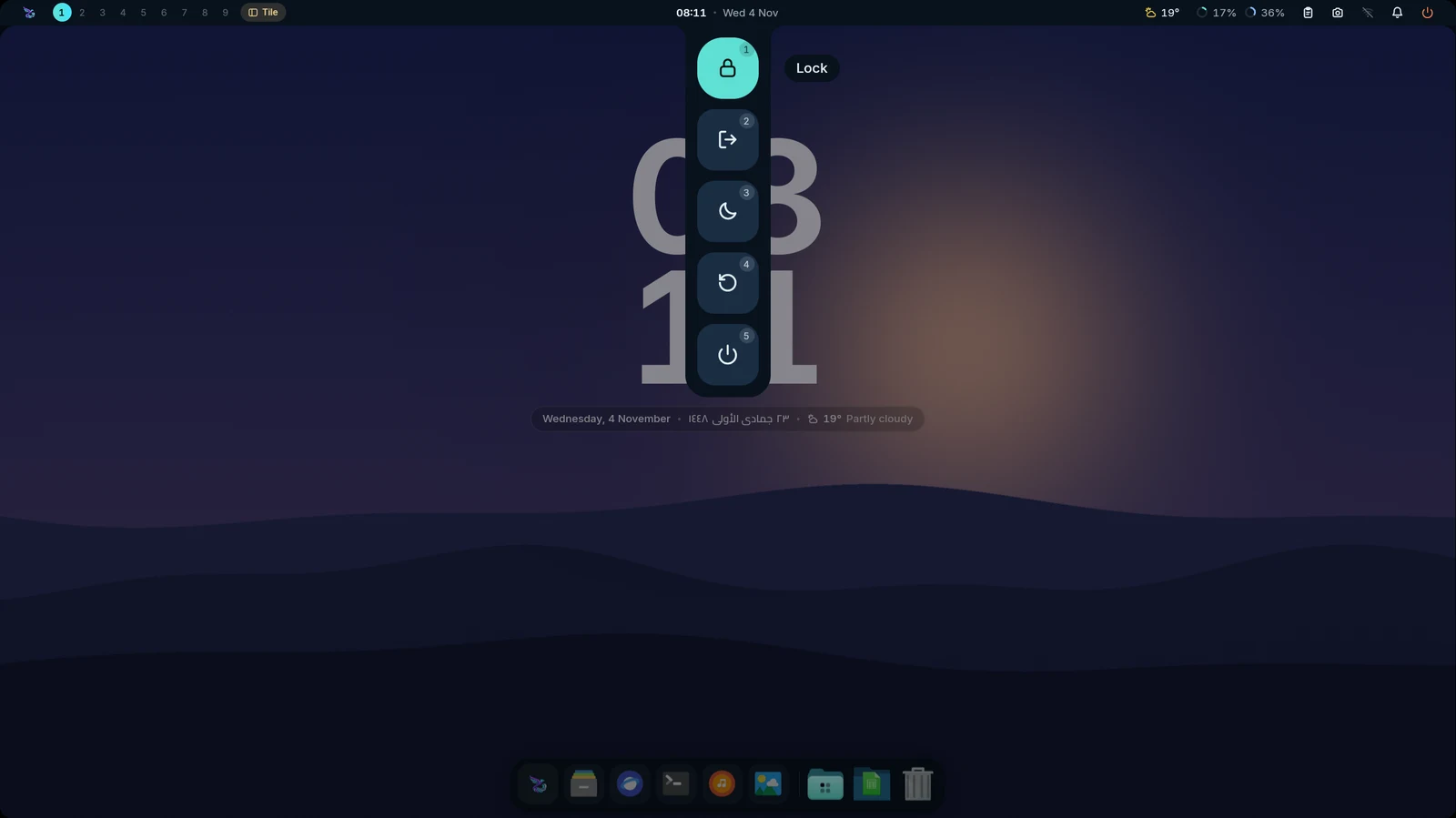 Top centre, hanging from the bar |
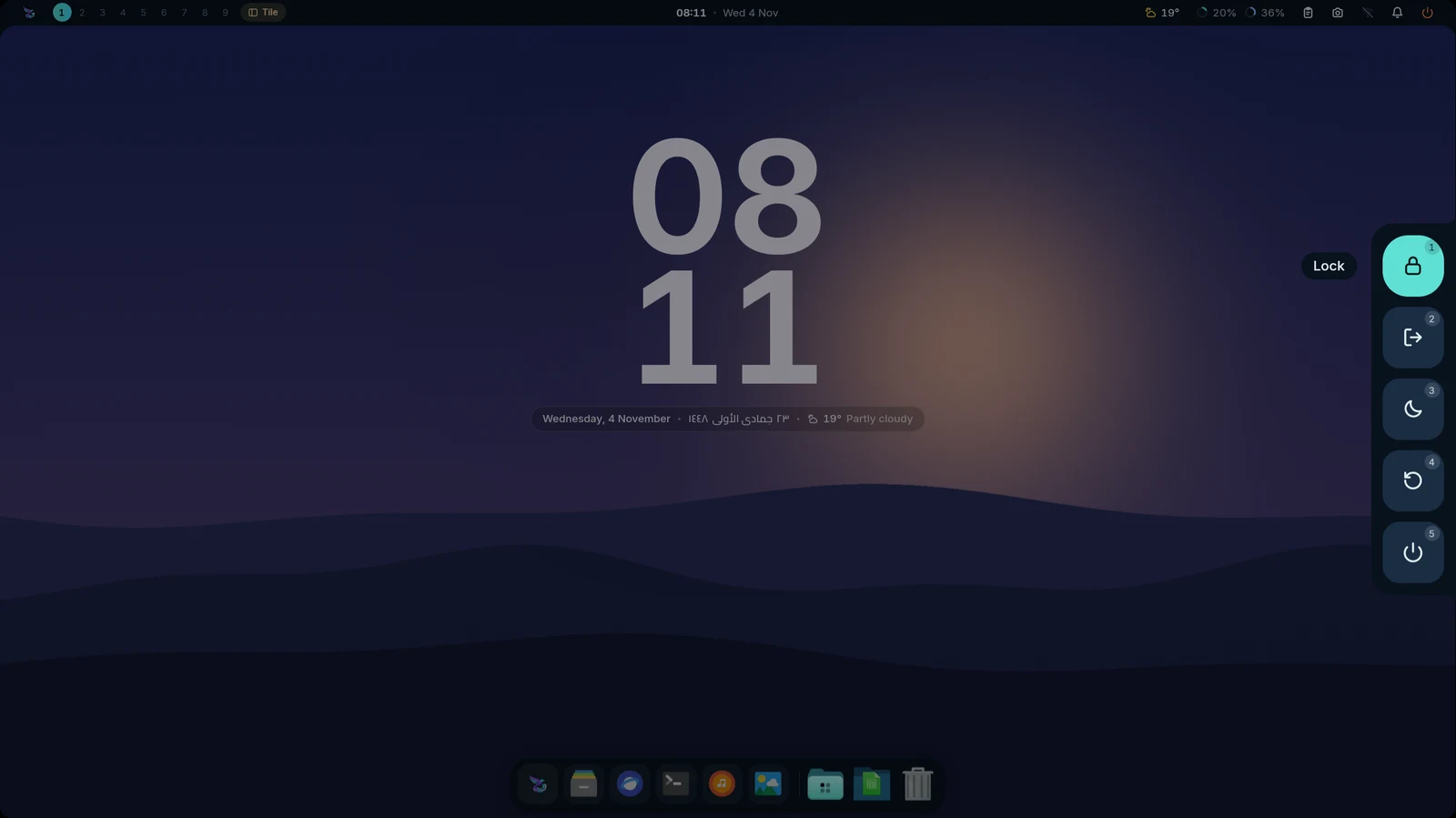 Side, the default |
- Hooks: run a command when something happens — started, wallpaper /
colors / light-dark changed, app themes written, locked / unlocked, idle /
resumed, screens off / on, before sleep / logout / restart / shutdown,
plugged in / unplugged, battery level / low / critical / full, power
profile, Wi-Fi and Bluetooth on / off. Commands run directly (no shell
unless you write
sh -c), with event details only inMANDARA_*environment variables and a time limit;mandara:<command>andskill:<name>run Mandara commands and launcher skills. Per-template post-hooks run after app theme files are written. - Offline mode (Studio → Privacy): Mandara makes no network requests of its own (weather, lyrics, album art, Wallhaven, marketplace, public IP, update news, downloads).
- Updates: pacman (
checkupdates), the AUR (paru / yay), APT, DNF, Zypper, XBPS, apk and Flatpak checked read-only every few hours (3 h by default) with a count badge, old → new versions by source and the latest Arch news. Update installs them right in the panel, with live progress and Mandara’s own password dialog; on NixOS the panel manages generations (System updates). - Resources: CPU, memory and every GPU (load, VRAM, temperature, clock), plus component temperatures in °C or °F, set by the global Units setting that the weather follows too.
- Color picker: an eyedropper over a frozen frame of the screen with a magnifier loupe (pixel grid, crosshair, live HEX; arrows nudge a pixel, scroll zooms). Picked colors keep a history of swatches with HEX, RGB, HSL and OKLCH (one click copies), an OKLCH tonal ramp and WCAG contrast against white, black and your theme surface.
- Soundscapes: an ambient mixer synthesized live in Rust, with no audio files: Corniche sea waves, rain, wind, café murmur, a crackling fireplace and white / pink / brown noise. Each layer has its own volume, plus master, presets (Corniche night, Rainy study, Deep focus, Fireside) and a sleep timer that fades out. It plays as “Mandara Soundscapes” in your mixer, and its audio thread runs only while sound is playing.
- World clock: cities from a curated list (with Arabic names: الإسكندرية, القاهرة, مكة المكرمة…) or any IANA time zone, with offsets, sunrise / sunset and a 24-hour daylight strip. A meeting planner slides every clock together and underlines each city’s working hours.
- Network speed: live download / upload in the bar, sampled only while it is on screen. The panel adds 60 s and 10 min graphs, per-interface rates, local and public IPs, session totals, and an optional Cloudflare speed test that runs only when you press its button.
- Authenticator: TOTP / HOTP 2FA codes (SHA-1 / 256 / 512) kept in your
keyring through the Secret Service, never in plaintext on disk. Add an
account by pasting an
otpauth://link or scanning a QR code from part of the screen. Codes show countdown rings; click one to copy it. The copy is hidden from clipboard history and cleared after 30 s. - Language switcher & keyboard layout in the bar.
- Authentication dialogs: a built-in polkit agent asks for your password
when an app needs administrator rights. If another agent is already
running, Mandara leaves it alone. You can turn it off in Studio → General.
Preview with
mandara msg polkit demo. - System tray: Mandara is the StatusNotifierWatcher (or a host of an existing one); app icons sit in the bar and their menus open as styled panels with submenus, check and radio items. Left-click activates, middle-click is the secondary action, the wheel scrolls.
- Brightness: a slider in the sidebar’s quick settings, and the laptop
brightness keys work out of the box (
mandara msg brightness up|downthrough logind, no root needed; a key your compositor config already binds is left alone). External monitors follow over DDC/CI. - Displays & night light: arrange monitors, change modes with a
keep-or-revert countdown, save profiles that switch on hotplug, choose
which displays show the bar, dock, OSDs, notifications and wallpaper, and
warm the screens from sunset to sunrise (
mandara msg nightlight toggle). - Screen time (opt-in): charts your days per app, with gentle limits.
Clipboard history uses the shared Wayland data-control watcher on both ext-data-control (including KWin) and wlr-data-control compositors. Turning the plugin off stops its watcher even when nothing is being copied.
Region, window and screen captures follow the focused output, including displays at negative layout coordinates.
Notification bodies use an advertised default action and can bring the identified application forward. When there is no action, an exact desktop entry or an unambiguous installed-app match can open the application.
Main menu theme cards preview each theme’s surfaces and accents. Home cards share the menu’s pattern, surface and shadow choices with action tiles; profile cards keep their wallpaper treatment.